> For the complete documentation index, see [llms.txt](https://help.pletox.com/llms.txt). Markdown versions of documentation pages are available by appending `.md` to page URLs; this page is available as [Markdown](https://help.pletox.com/work.md).
# Work
The Work module in Pletox helps organizations manage tasks, projects, collaboration, and time tracking in a structured way.
It allows admins and managers to assign tasks digitally, track completion time and quality, this also helps maintain a proper work record and improves productivity and accountability.
The visibility and functionality of the Work module are completely permission-based and company-wise configurable.\
\
Modules Available Under Work
The following modules (functions) are available within the Work module:
* Tasks – Used to assign, track, and manage tasks for employees.
* Projects – Used to organize multiple tasks under a project and monitor overall progress.
* Docs – Used to create, upload, and manage work-related documents.
### Company-Level Task Settings (Organization Setup)
#### Navigation Path
Settings → Organization → Companies → You can see Company List in (Action) → Company Settings → Work / Task Settings\
\
\
\

These settings apply company-wise.
#### Available Options
1. Task Cross Department Approval\
When enabled, manager approval is required if a task is assigned to an employee from a different department.\
\
Example: If a Finance user assigns a task to an HR user, approval will be mandatory.
2. Enable Category / Type on Task Form\
When enabled, Task Category and Task Type fields will appear on the task creation and edit screens.
3. Save.
4. Applies the above task settings for the selected company.
### Work Module Configuration Settings
#### Navigation Path
Settings → Configuration → Settings → Work\
\
\
\

#### Dropdown Options
1. Require Task Acceptance\
Yes: Employee must accept the task before it becomes active.\
No: Task is auto-assigned without acceptance.
2. Require HOD Approval\
Yes: Head of Department approval is required for tasks.\
No: Tasks proceed without HOD approval.
#### Toggle Options
1. Enable Team Assignment Restriction\
If enabled, users can assign tasks only to members of their own team
2. Enable to Access All Location Users\
If enabled, users can access employees from all locations.\
If disabled, access is limited to the user’s own location.
3. Enable to Access All Company Users\
If enabled, users can access employees from all companies in the workspace.If disabled, access is limited to the user’s own company.
4. Save
5. Applies the configuration settings.
### Employee Work Module Access & Permissions
The Work module includes the following sub-modules:
* Threads
* Docs
* Project
* Tasks
* Timesheet
* Reports
Each sub-module has a separate visibility toggle. Only enabled modules will appear in the employee login.
### Module-Wise Permission Controls
#### Threads, Docs, Project, Tasks
Available permission toggles:
* Create
* Edit
* Delete
Admins can control what actions an employee is allowed to perform in each module.
#### Timesheet Permissions
Available view permissions:
* View (My Self)
* View (My Team)
* View (My All)
These permissions define the scope of timesheet visibility for employees.After enabled Toggle click on the Save button.
## Task
### Overview
The Task module in Pletox is used to create, assign, track, and manage tasks for employees. It helps organizations plan work, monitor progress, and evaluate performance based on task completion time and quality
### Accessing the Task Module
* Go to Work → Tasks
* The task screen opens with options to add tasks, view tasks, and manage task data
### Add Task
Used to create or assign a new task to an employee.
### Add Task – Task Creation Screen
When you click Add Task, a dialog box opens with the following fields:
#### 1. Task Title
* Enter the title of the task.
#### 2. Description
* Add detailed information about the task so the employee clearly understands the work.
#### 3. Attachment
* Upload files related to the task (documents, images, references, etc.).
#### 4. Category
* Dropdown options:
* No Category – Task is created without a category.
* Other – Allows you to enter a custom category name.
**Settings should be completed first to display categories in the Add Task dialog.**
Use: Helps in organizing and grouping similar tasks.
#### 5. Priority
* Options available:
* High
* Medium
* Low
* None
Use: Defines the importance of the task.
#### 6. Assignee
* Select the employee to whom the task is assigned.
* Employee names appear in the dropdown.
#### 7. Project
* Select the project under which the task belongs.
* Projects must be created first in the Project module.
Use: Links tasks to specific project
#### 8. Customer
* Select a customer related to the task.
Use: Useful for client-based or external tasks.
#### 9. Department
* Choose the department responsible for the task
#### 10. Dates
* Start Date – When the task begins.
* Due Date – Deadline for task completion.
#### 11. Collaborators
* Add other employees who will support or follow the task.
#### 12. Create More (Toggle)
* Disabled: After adding a task, the dialog box closes.
* Enabled: Dialog box remains open, allowing you to add multiple tasks continuously
#### 13. Add Task Button
* Click to save and assign the task.
### Task Views
Below the Add Task button, multiple view options are available.
### 1. List View
Displays tasks in a table format with columns such as:
* Title – Task name
* Date – Start date and due date
* Project Name
* Assignee
* Status
#### Task Status Options
* **Not Started** – The task is created but work has not begun.
* **In Progress** – The task is currently being worked on.
* **Completed** – The task has been finished and closed.
* **On Hold** – The task is temporarily paused and can be resumed later.
* **Cancelled** – The task has been stopped and will not be continued.
**a three-dots (⋮) menu is available for each task. This menu provides quick actions to manage the task.**
#### Available Options
**1. Remind Me**
* Used to set a reminder for the task.
* After clicking Remind Me, a popup opens where you can:
* Select the reminder date
* Select the reminder time
* Click Add Reminder to save it.
Use:\
Helps users remember important tasks and deadlines.
**2. Duplicate**
* Creates a copy of the selected task with the same details.
Use:\
Useful when similar tasks need to be created repeatedly.
**3. Archive**
* Moves the task to archive without deleting it
Use:\
Keeps completed or inactive tasks for future reference while removing them from the active list.
**4. Delete**
* Permanently removes the task from the system.
Use:\
Used when a task is no longer required.
### 2. Board View
Displays tasks in cards, grouped by status:
* **Not Started** – The task is created but work has not begun.
* **In Progress** – The task is currently being worked on.
* **Completed** – The task has been finished and closed.
* **On Hold** – The task is temporarily paused and can be resumed later.
Each card shows:
* Task name
* Assignee
* Task dates
Use: Visual tracking of task progress.
### 3. Calendar View – Tasks
#### Viewing Tasks on Calendar
* All **assigned tasks** are displayed on the calendar based on their **start date and due date**.
* Tasks are shown on their respective dates, making it easy to track upcoming and overdue work.
### 4. Files
Files added as attachments while creating or updating a task are also available in the **Files** section. Users can additionally upload files directly using the **Upload File** option.\
Each file entry displays the **file name** along with the **associated task name** for easy reference.
### Task Filters
The **Task module** provides filters to quickly find and manage tasks based on different conditions.
#### Available Task Filters
* **Start Date**\
Filter tasks based on the task start date.
* **End Date**\
Filter tasks based on the task due date.
* **Created By**\
View tasks created by a specific user.
* **Assigned To**\
View tasks assigned to a specific employee.
* **Project List**\
Filter tasks based on the selected project.
* **Status**\
Filter tasks by task status (Not Started, In Progress, Completed, On Hold, Cancelled, etc.).
* **Priority**\
Filter tasks by priority (High, Medium, Low, None)
#### Clear Button
* Clears **all applied task filters** at once and resets the view.
**Me:**
* Shows tasks assigned to the logged-in user.
**Everyone:**
* Shows tasks related to:
* Team members
* Tasks where the user is a collaborator
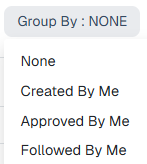
**Group By:**
* **None** – Displays all records without applying any grouping.
* **Created by Me** – Groups and shows records that were created by you.
* **Approved by Me** – Groups and shows records that you have approved.
* **Followed by Me** – Groups and shows records that you are following for updates.
Use: Organizes tasks based on user involvement.
#### Filtered By:
* **All Time** – Shows all tasks regardless of date.
* **Today** – Shows tasks that are due today.
* **Overdue** – Shows tasks whose due date has already passed.
* **Last Week** – Shows tasks from the previous week.
* **This Week** – Shows tasks scheduled for the current week.
* **Next Week** – Shows tasks scheduled for the upcoming week.
* **Upcoming** – Shows tasks that are due in the future beyond today.
Use: Quickly find tasks by time period.
#### Sorted By:
Used to arrange tasks in a meaningful order so users can quickly find and prioritize their work.
* Sort using two dropdowns:\
\
\

* **Title** – Helps users quickly locate a task by its name in an organized list.
* **Start Date** – Helps users see which tasks are planned to begin first.
* **Due Date** – Helps users identify urgent tasks and manage deadlines easily.
* **Assignee** – Helps users view tasks based on who is responsible for them.
* **Project** – Helps users filter and organize tasks based on the project they belong to.
* **Status** – Helps users track tasks by their current progress (e.g. In Progress, Completed).
* **Ascending** – Helps users view tasks from earliest or lowest order first.
* **Descending** – Helps users view tasks from latest or highest priority first.
### Customize Options
### 1. Table Column Manager
Displays **all available columns** for the Task list view.
#### Functionality:
* Each column has an **ON/OFF toggle**.
* Enable a toggle to **show** the column.
* Disable a toggle to **hide** the column.
#### Use
* Customizes the **Task list view** based on user preference.
* Helps focus only on required information.
### 2. Field List:
Displays **all custom fields** that have been created for Tasks
#### Functionality
* Each field can be:
**Activated** (visible and usable)
**Deactivated** (hidden but not deleted)
#### Use
* Allows easy management of custom fields without deleting them.
* Helps control which fields are currently in use.
### 3. Add Field
Used to **create a new custom field** for Tasks
#### Required Details
**Field Title**
* Enter the name of the custom field.
**Field Type**
Select one of the following input types:
* **Text** – For text input
* **Date** – For selecting a date
* **Number** – For numeric values
* **Select** – For predefined options
#### Select Field Type
When **Select** is chosen as the field type:
* Multiple options can be created.
* Each option can be:
Given a **custom name**
Assigned a **color**
#### Use
* Useful for status tags, categories, labels, or priority-type fields.
* Colors help users quickly identify values visually.
#### 4. More Options (Three Dots Menu)
Available options:
* **Show Archived Tasks:** Displays all archived tasks that are no longer active.
* **Show Completed Tasks:** Displays all tasks that have been marked as completed.
* **Show Recurring Tasks:** Displays all tasks that are configured to repeat.
* **Export to Excel:** Downloads the current task list as an Excel file.
* **Export to PDF:** Downloads the current task list as a PDF file.
Use: Data visibility and task data download.
### **Employee Task View:**
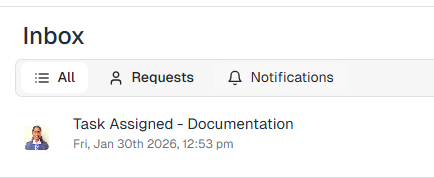
When an admin assigns a task to an employee, a **notification is sent to the employee’s Inbox** and the task also becomes visible in the **Task module**. From the notification, the employee can open the task and review all related details.
#### **Task Details Available to Employee**
* **Assign**: Displays who assigned the task and to whom it is assigned.
* **Date**: Shows the **start date** and **due date** of the task.
* **Project Name**: Indicates the project under which the task is created.
* **Start Time**: When the employee starts working on the task, they must click on the start time to enable **of** until task completion.
* **Status**: The employee can view and update the task status as:\
Not Started\
In Progress\
Completed\
Cancelled
* **Priority**: Displays the priority level of the task.
* **Client**:
* **Ticket Type**: Displays the type of ticket linked to the task.
* **Of the**: Shows the task description provided by the admin, based on which the employee performs the task.
#### **Additional Features**
* **Collaborators**: Employees can view all collaborators added to the task.
* **Attachments / Documents**: Employees can view any files or documents attached to the task.
* **Add Comment:** Allows the employee to post remarks, updates, or feedback related to the task.
## Project
### Overview
The Project module in Pletox is used to create and manage projects. Projects help group multiple tasks under one work objective and allow managers to track progress, timelines, and team involvement in one place. Tasks can be assigned to employees within a specific project, making work planning more organized and transparent.
### Accessing the Project Module
* Go to Work → Projects
* The project listing screen will open
### Add New Project
Used to create a new project.
When you click Add New Project, a dialog box opens with the following fields:
#### 1. Project Title
* Enter the name of the project.
Use:\
Helps identify the project clearly.
#### 2. Description
* Add details about the project scope, goal, or instructions.
Use:\
Gives clarity to the project lead and team members.
#### 3. Dates
* Start Date – Project start date
* Due Date – Project completion deadline
Use:\
Helps track project timelines and deadlines.
#### 4. Assignee (Project Lead)
* Select the employee responsible for the project.
Use:\
Defines ownership and accountability.
#### 5. Department
* Choose the department related to the project.
Use:\
Helps organize projects department-wise.
#### 6. Team Members
* Click the plus (+) button to add team members.
* Multiple employees can be added.
Use:\
Defines who will work on the project tasks.
#### 7. Add Project Button
* Click to save and create the project.
### Project Listing & Management
After projects are created, they appear in the project list with the following columns:
Project Columns
* Title – Project name
* Date – Start and due date
* Lead – Project assignee / project lead
* Team – Assigned team members
* Progress Bar – Shows project progress in percentage (%)
* Actions (Three Dots) – Edit or delete the project
➕ Add Custom Field Button
* Used to add custom fields to the project.
### Project Actions (Three Dots Menu)
Available options:
* Edit – Modify project details
* Delete – Permanently remove the project
### Project Filters
The **Project module** provides filters to easily search and manage projects.
#### Available Project Filters
* **Start Date**\
Filter projects based on project start date.
* **End Date**\
Filter projects based on project due date.
* **Created By**\
View projects created by a specific user.
* **Assigned To**\
View projects assigned to a specific project lead.
#### Clear Button
* Clears **all applied project filters** and resets the project list.
* Search projects by project title or related details.
#### Sorted By:
Used to arrange tasks in a meaningful order so users can quickly find and prioritize their work.
* Sort using two dropdowns:\
\
\

* **Title** – Helps users quickly locate a task by its name in an organized list.
* **Start Date** – Helps users see which tasks are planned to begin first.
* **Due Date** – Helps users identify urgent tasks and manage deadlines easily.
* **Assignee** – Helps users view tasks based on who is responsible for them.
* **Project** – Helps users filter and organize tasks based on the project they belong to.
* **Status** – Helps users track tasks by their current progress (e.g. In Progress, Completed).
* **Ascending** – Helps users view tasks from earliest or lowest order first.
* **Descending** – Helps users view tasks from latest or highest priority first.
### Customize Options
#### Customize Button
Allows users to personalize the project list view.
### 1. Table Column Manager
Displays **all available columns** for the or Project list view.
#### Functionality
* Each column has an **ON/OFF toggle**.
* Enable a toggle to **show** the column.
* Disable a toggle to **hide** the column.
#### Use
* Customizes the **Project list view** based on user preference.
* Helps focus only on required information.
### 2. Field List
Displays **all custom fields** that have been created for Projects.
#### Functionality
* Each field can be:\
**Activated** (visible and usable)
**Deactivated** (hidden but not deleted)
#### Use
* Allows easy management of custom fields without deleting them.
* Helps control which fields are currently in use.
### 3. Add Field
Used to **create a new custom field** for Projects.
#### Required Details
**Field Title**
* Enter the name of the custom field.
**Field Type**
Select one of the following input types:
* **Text** – For free text input
* **Date** – For selecting a date
* **Number** – For numeric values
* **Select** – For predefined options
#### Select Field Type
When **Select** is chosen as the field type:
* Multiple options can be created.
* Each option can be:\
Given a **custom name**
Assigned a **color**
#### Use
* Useful for status tags, categories, labels, or priority-type fields.
* Colors help users quickly identify values visually.
### How Projects Work with Tasks
* Projects act as a container for tasks.
* Tasks must be created under a project to track progress effectively.
* The project progress bar updates based on task completion.
## Docs
### Overview
The Docs module in Pletox is used to create, store, and manage work-related documents. Documents can be linked to projects, tasks, departments, and employees, making it easy to maintain structured records and share information with the right people.
### Accessing the Docs Module
* Go to Work → Docs
* The Docs listing screen opens
### Add New Docs:
Used to create a new document.
When you click Add New Docs, a dialog box opens with the following options:
#### 1. Title
* Enter the document title.
Use:\
Helps identify the document easily.
#### 2. Project
* Select the project related to the document.
Use:\
Groups documents project-wise.
#### 3. Task
* Select the task under which the document is created.
Use:\
Links the document directly to a task.
#### 4. Assignee
* Select the employee responsible for the document.
#### 5. Department
* Choose the department related to the document.
#### 6. Add Attachment
* Upload files such as PDFs, images, or reference documents.
Use:\
Stores supporting files along with the document.
#### 7. Description:
* Enter document content or notes.
**Editing Options Available:**
* Bold
* Italic
* Underline
* Bullet points
* Numbering
Use:\
Helps format the document clearly.
#### 9. Share With:
* Click the plus (+) button to select users with whom the document will be shared.
Use:\
Allows collaboration and controlled access.
#### 10. Add Doc Button
* Click to save the document.
#### The following filters are available to help users filter documents:
* **Created By**:
* **Assign**: Filter documents based on the user to whom they are assigned.
* **Project List**: Filter documents based on the selected project.
The **Clear** button is used to **remove all applied filters** and reset the document list.
#### Me:
* Shows documents shared with the logged-in user.
#### Everyone:
* Shows documents related to:
* Team members
* Documents where the user is added as a collaborator
**Group By:**
* **None** – Displays all records without applying any grouping.
* **Created by Me** – Groups and shows records that were created by you.
* **Approved by Me** – Groups and shows records that you have approved.
* **Followed by Me** – Groups and shows records that you are following for updates.
Use:\
Organizes documents based on user involvement.
#### Sorted By:
Used to arrange tasks in a meaningful order so users can quickly find and prioritize their work.
* Sort using two dropdowns:\
\
\

* **Title** – Helps users quickly locate a task by its name in an organized list.
* **Start Date** – Helps users see which tasks are planned to begin first.
* **Due Date** – Helps users identify urgent tasks and manage deadlines easily.
* **Assignee** – Helps users view tasks based on who is responsible for them.
* **Project** – Helps users filter and organize tasks based on the project they belong to
* **Status** – Helps users track tasks by their current progress (e.g. In Progress, Completed).
* **Ascending** – Helps users view tasks from earliest or lowest order first.
* **Descending** – Helps users view tasks from latest or highest priority first.
### Customize Options
#### Customize Button
Allows users to personalize the project list view.
### 1. Table Column Manager
Displays **all available columns** for the or Project list view.
#### Functionality
* Each column has an **ON/OFF toggle**.
* Enable a toggle to **show** the column.
* Disable a toggle to **hide** the column.
#### Use
* Customizes the **Project list view** based on user preference.
* Helps focus only on required information.
### 2. Field List
Displays **all custom fields** that have been created for Projects.
#### Functionality
* Each field can be:\
**Activated** (visible and usable)
**Deactivated** (hidden but not deleted)
#### Use
* Allows easy management of custom fields without deleting them.
* Helps control which fields are currently in use.
### 3. Add Field
Used to **create a new custom field** for Projects.
#### Required Details
**Field Title**
* Enter the name of the custom field.
**Field Type**
Select one of the following input types:
* **Text** – For free text input
* **Date** – For selecting a date
* **Number** – For numeric values
* **Select** – For predefined options
#### Select Field Type
When **Select** is chosen as the field type:
* Multiple options can be created.
* Each option can be:\
Given a **custom name**
Assigned a **color**
#### Use
* Useful for status tags, categories, labels, or priority-type fields.
* Colors help users quickly identify values visually.
#### 4. More Options (Three Dots)
* Show Archived – Displays archived documents.
### Docs List View
After creating documents, they appear in the list with the following columns:
* Title – Document name
* Project – Linked project
* Task – Linked task
* Shared With – Users with access
* Department – Related department
### Document Actions (Three Dots Menu)
Available options:
* Duplicate – Create a copy of the document
* Archive – Move document to archive
* Delete – Permanently remove the document
➕ Add Custom Field Button
* Used to add additional custom fields directly from the list view.