> For the complete documentation index, see [llms.txt](https://help.pletox.com/llms.txt). Markdown versions of documentation pages are available by appending `.md` to page URLs; this page is available as [Markdown](https://help.pletox.com/letters.md).
# Letters
The Letters Module in Pletox allows the admin to generate and manage all company letters in a quick, standardized, and professional way.
\
Letter templates are pre-designed by the admin using placeholders (like employee name, date, department, etc.), so whenever a letter is generated, all information fills automatically.\
This ensures ready-made, accurate, and formatted letters without needing to type manually every time.
#### 1. Superadmin / Admin View
1. The Letters module is accessible from the sidebar.
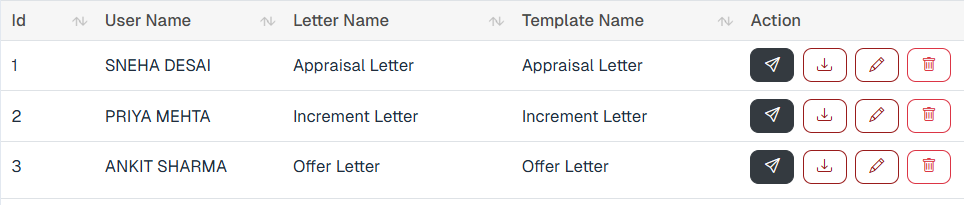
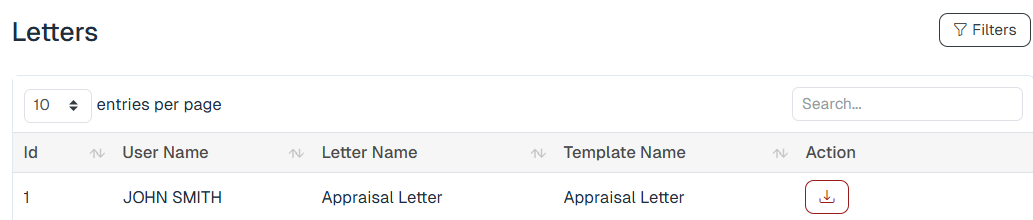
2. When the Superadmin clicks on Letters, a list view opens containing all generated letters.
3. Each record displays:
* **User Name** – Displays the name of the user.
* **Letter Name** – Displays the name of the letter.
* **Template Name** – Displays the template used for the letter.
**Actions such as send Mail, Edit, Delete, and Download.**\
\

Admin can manage and control every letter through these actions.
* **Edit:** To modify letter content, layout, or settings.
* **Delete:** To remove an unwanted or duplicate letter.
* **Download**: To download the letter in document or PDF format.
* **Send Mail –**
Click to send the letter to the employee’s official email ID; a confirmation popup appears informing that the letter is sent using the company email ID and will be delivered to the email address entered in the employee’s General Details.
4. **Top-Side Controls :**
At the upper left corner of the Letters page, two buttons are available:
1. **Filter :**
Used to search or filter letters based on employee name.
2. **Generate Letter :**
Used to create a new letter.
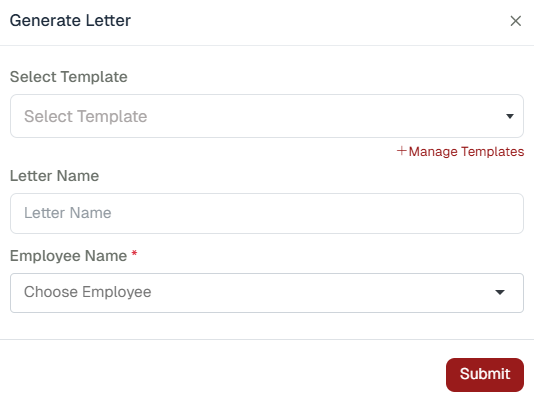
When clicked, a dialog box opens asking for:
* **Template Name** – Displays the name of the selected letter template.
* **Letter Name** – Displays the title of the generated letter.
* **Employee Name** – Displays the name of the employee for whom the letter is created.
After filling these fields and clicking **Submit**, a ready letter is generated **automatically.**
The generated letter appears in the list under the employee’s name for further actions.
**4. Edit Section (Detailed Explanation)**
When the admin clicks the Edit button for any letter, a full editing screen opens where advanced formatting and design changes can be made.
At the top of the edit screen, three important buttons are available:
1. **Download:** To download the current version of the letter.\

2. **Preview:** To see live changes made before saving.\

3. **Save Template:** To save the updated design or content permanently so that it appears in the list of templates.\

**Edit Settings:**
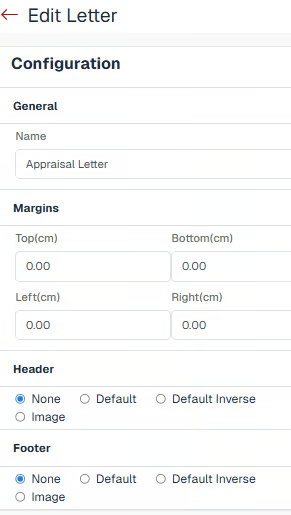
Inside the Edit Settings, the Admin can perform multiple customizations to tailor the letter format:
* Change the Letter Name
* Adjust Margins (Top, Bottom, Left, Right)
* Add or Modify Header and Footer Sections
* Options include None, Default, Default Inverse, and Image.
* In the Image option, the admin can upload a company logo or other header/footer images and set the height as required.
* Insert Images such as company logos or digital signatures.
* Edit the Body Content directly and apply rich-text formatting (bold, italic, underline, alignment, etc.) for a professional layout, Text alignment, Bullet list, Numbered list.
* Set spacing, font type, and alignment for better presentation.
* In the **Edit Letter** section, placeholders are **provided and can be inserted** while creating or updating a letter template.
* In the **Generate Letter** section, placeholders are **visible but do not auto-fetch by default**.
* Placeholders will **auto-fetch data only if they are already defined and mapped in the selected letter template**.
All these options help maintain a professional letter layout and allow personalization as needed.
#### **Template Management (HR Settings)** Add Letter Template – Super Admin Process :
Beside the **Generate Letter** option, a **Manage Template** button is available.\
\

Using **Manage Template**, users can create and maintain templates for various HR letters. Once a template is prepared, there is **no need to manually create the same letter repeatedly**.
Templates support **placeholders**, which automatically **auto-fetch employee and company data** at the time of letter generation. This ensures consistency, accuracy, and faster letter creation.
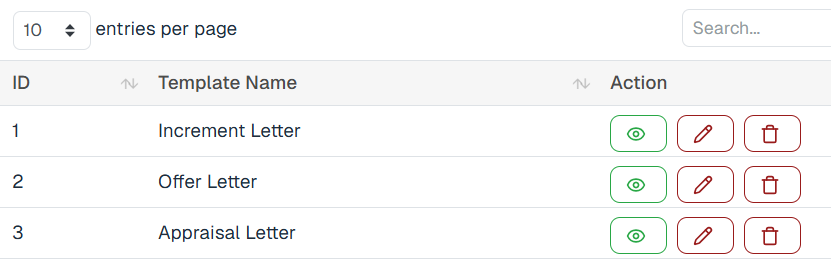
**Letter Template Listing :**
The listing page displays all existing letter templates with the following **Action** options:
* **View** – View the prepared letter template
* **Edit** – Modify an existing letter template
* **Delete** – Delete the prepared letter template
#### Add New Template :
1. Click on **Add New Template** **(top-right)**\
\
\
\
At the top of the edit screen, two important buttons are available:
2. **Preview:** To see live changes made before saving.\

3. **Save Template:**\
\
To save the updated design or content permanently so that
The **Edit Letter Template** section will open
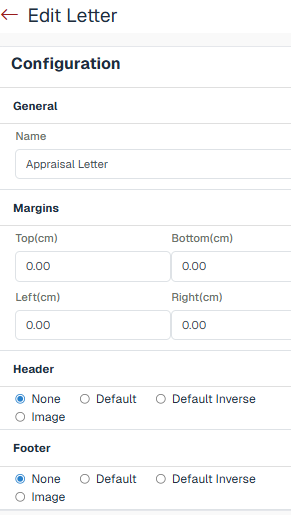
Inside the **Edit Settings,** the Admin can perform multiple customizations to tailor the letter format:
* Change the **Letter Name**
* Adjust **Margins** (Top, Bottom, Left, Right)
* Add or Modify **Header** and **Footer** Sections
* Options include None, Default, Default Inverse, and Image.
* In the Image option, the admin can upload a company logo or other header/footer images and set the height as required.
* Insert Images such as company logos or digital signatures.
* Edit the Body Content directly and apply rich-text formatting (bold, italic, underline, alignment, etc.) for a professional layout, Text alignment, Bullet list, Numbered list.
* Set spacing, font type, and alignment for better presentation.
Create or update the letter content using formatting tools
#### Placeholders :
The **Placeholders** section provides multiple predefined placeholders.\
When placeholders are added to the template, data will **auto-fetch during letter generation**.
**Examples of placeholders include:**
* Current Date
* Employee First Name
* Employee Last Name
* Full Name
* Date of Joining
* Exit Date
* Salary Structure
* Bank Details
These placeholders ensure accurate and automated data population while generating HR letters.
1. All letter templates are stored and managed in the **HR Section** under Settings.
2. Admin can create, edit, or delete templates as per requirement.
3. Each template includes placeholders that **automatically pull employee data when the letter is generated.**
#### Employee View :
1. If permission is granted by the Superadmin, employees can access the Letters module from their sidebar.
2. Employees can only **view and download** their own letters such as appointment letters, offer letters, or salary revision letters.
3. They cannot create, delete, or edit letters. as the access not given
4. If an employee manages a team, they can see letters of their team members (if allowed by admin).
5. Otherwise, they can only view their own generated letters.
6. Filter button is use for filter the letters by their Letter name.
#### Employee Access :
Employee access to the **Letters module** is **permission-based** and controlled through individual toggles.
#### How to Give Letter Access to an Employee
1. Go to **Settings**\
\

2. Navigate to **Organization**\
\

3. Select **Employee**
4. Open the specific employee’s **Edit** section
5. Go to the **Permissions** tab
6. Under **HR Settings**, locate **Letters**
#### Available Permission Toggles:
Each permission works independently. Employees can perform only the actions that are enabled.
**View Permissions**
* **View (My Self)** – View only own letters
* **View (My Team)** – View letters of team members
* **View (My All)** – View letters of all employees
**Action Permissions**
* **Create** – Generate letters
* **Edit** – Edit generated letters
* **Delete** – Delete letters
After enabling the permission, click the **Save** button located at the **bottom of the permission page** to apply the changes.
#### Permission Behavior
* If a toggle is enabled, the employee can perform the related action
* If disabled, the option will not be visible or accessible
\
\
\
\
\
\
\
\