> For the complete documentation index, see [llms.txt](https://help.pletox.com/llms.txt). Markdown versions of documentation pages are available by appending `.md` to page URLs; this page is available as [Markdown](https://help.pletox.com/shift-master.md).
# Shift master
The Shift Master Module in Pletox allows the Superadmin to efficiently manage employee working shifts, rosters, breaks, and floating week-offs — ensuring smooth workforce scheduling .
It helps the organization streamline employee time management, maintain proper shift rotation, and provide flexibility for employees working in different time slots.\
\
The module is divided into four key sections:\
\

1. **Shift**
2. **Shift Roster**
3. **Break**
4. **Floating Week Offs**
#### For Superadmin :
#### **1. Shifts Section**
#### Purpose:
The Shifts section allows the Superadmin to define and manage all types of work shifts within the organization — such as General Shift, Morning Shift, Night Shift, etc.
#### Details Displayed :
\
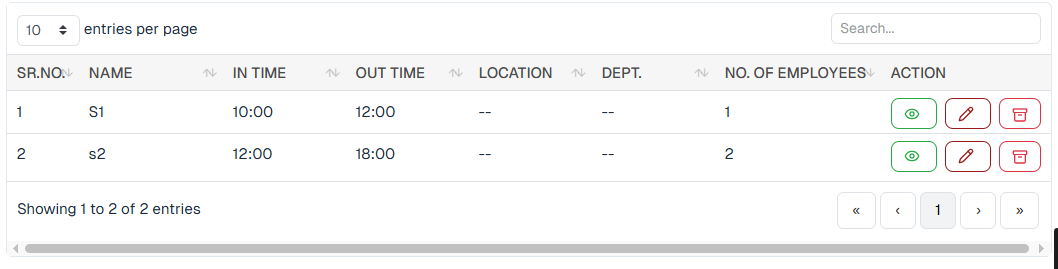
**The list view displays the following columns:**
* Shift Name (e.g., General, Morning, etc.)
* In Time
* Out Time
* No. of Employees (total employees assigned under that shift)
* Location
* Department
* No.of employee
* Action buttons: \
View, Edit, Delete
**Top Action Buttons :**
1. **Show Archive:**\
Displays all archived or inactive shifts.
2. **Filter:**\
Used to filter the list of shifts by department, location, or name.
3. **Export:**\
Allows the Superadmin to export the shift list (complete or filtered) in Excel/CSV format.
#### **Add Shift (Detailed Overview)** 
The Add Shift feature allows the Super Admin to create and configure new working shifts in the system. This helps manage employee working hours efficiently across multiple departments and locations.
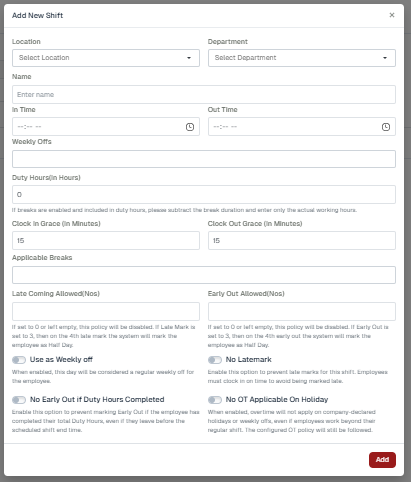
When the Super Admin clicks on **“Add Shift”**, a dialog box opens containing various input fields and configuration options:\
\
**The following fields are available in the Add Shift form:**
* **Location**: Choose the specific branch or office location where this shift applies.
* **Department**: Assign the shift to one or more departments.
* **Shift Name**: Enter a unique name for easy identification (e.g., General Shift, Night Shift).
* **In Time**: Define the employee clock-in/start time.
* **Out Time**: Define the employee clock-out/end time.
* **Week Offs**: Select the weekly off days applicable for this shift.
* **Duty Hours**: Automatically calculated based on in and out times but can also be adjusted manually.
* **Clock-In Grace**: Set the grace period (in minutes) allowed for late arrival before marking a late entry.
* **Clock-Out Grace**: Set the grace period for early departure before it counts as an early out.
* **Applicable Breaks**: Choose which breaks (defined in the Break Master) apply to this shift.
* **Late Coming Allowed (Nos):**
Defines the number of allowed late entries. If set to **0 or left blank**, the policy is disabled. Exceeding the limit will result in **Half Day** marking.**Early Out Allowed (Nos):**
Defines the number of allowed early exits. If set to **0 or left blank**, the policy is disabled. Exceeding the limit will result in **Half Day** marking.
* **Use as Weekly Offs** (Toggle): Enable or disable this shift as a weekly off pattern.
* **No Late Marks** (Toggle): If enabled, late marks will not apply to employees in this shift.
* **No Early Out if Duty Hours Completed** (Toggle): Prevents early-out penalties if the total duty hours are completed.
* **No OT Applicable for Holidays** (Toggle): Disables overtime calculation for employees working on holidays in this shift.
Once all fields are filled, clicking the “**Add**” button saves the new shift, and it appears in the Active Shift List on the main Shift page.
**Action Options in Shift List :**
Each created shift has an Action Button offering the following controls :
#### Shift List – Action Buttons :
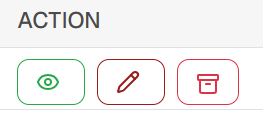
Once a shift is created, the following **action buttons** appear opposite each\
shift:
* **View** – Allows users to see shift details.
* **Edit** – Allows users to modify the shift details.
* **Archive** – Allows users to archive the shift so it is no longer active but kept for record purposes.
Each action serves a specific purpose as explained below.
#### **View Shift :**
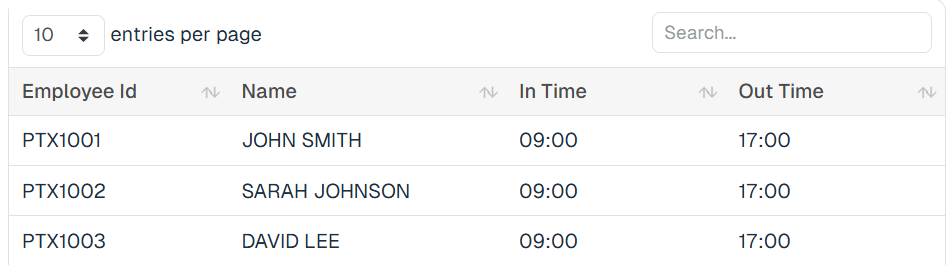
The **View** option displays the list of employees assigned to a specific shift
#### Details Shown in View
The following columns are displayed:
* **Employee ID** – Displays the unique ID assigned to the employee.
* **Employee Name** – Displays the full name of the employee.
* **In Time** – Displays the employee’s clock-in time.
* **Out Time** – Displays the employee’s clock-out time.
A **search bar** is available at the top to quickly find employees within the shift.
#### View Page – Upper Buttons
Two buttons are available on the top of the View screen:
**Export :**\

* Downloads the list of employees assigned to the shift.
* Useful for reporting and audit purposes.
**Assign Employee:**\

* Used to assign employees to the selected shift.
#### Assign Employee to Shift – Steps
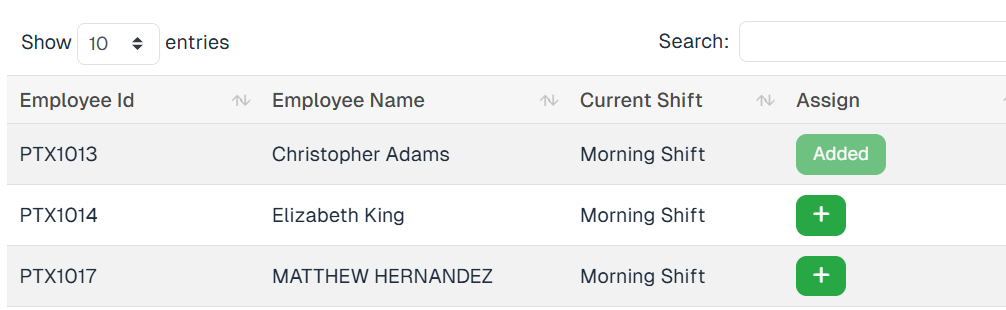
1. Click **Assign Employee**.
2. A list of employees appears with their **current assigned shift**.
3. An Plus button is shown beside each employee.
4. Click on the Plus button next to the employee you want to add to the shift.
5. The employee is immediately assigned and appears in the shift list when you return to **View**.
#### Edit Shift :
The **Edit** option allows changes to the shift configuration.
Changes made here apply to all employees assigned to the shift.
#### 2. Shift Roster Section
#### Purpose:
The Shift Roster section helps the Superadmin manage and assign employee shifts on a weekly basis.\
It provides a calendar-based view to plan, monitor, and modify employee schedules.
Interface Overview
### Shift Roster View:
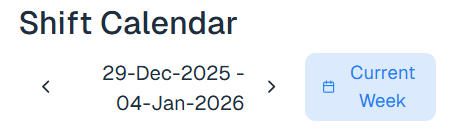
The **Shift Roster** section in Pletox allows Superadmins to view and manage employee shift assignments on a **weekly basis**. It provides a clear, calendar-style view of which shift is assigned to each employee for every day of the selected week.
When the Superadmin opens the **Shift Roster**, the system displays the **current week by default**.
#### Key Capabilities
* View the **current week’s shift schedule** immediately on opening the page.
* Navigate to **past weeks** to review historical shift assignments.
* Check which **employee was assigned to which shift** on any given day of the selected week.
* View shift **timings** for each assigned shift.
### Week Navigation:
* Superadmin can change the **week selection** using the week navigation controls.
### Filters
Filters are available to quickly locate specific employees or teams within the roster.
The Superadmin can filter by:
* **Employee Name** – Filters records for the selected employee.
* **Company** – Filters records based on the selected company.
* **Location** – Filters records based on the selected work location.
* **Department** – Filters records based on the selected department.
These filters help narrow down the roster view and make large teams easier to manage.
### Shift Roster Columns:
The Shift Roster is displayed in a grid format with the following structure:
* **Employee Name** – Listed on the first coloumn.
* **Week Dates** – Each column represents a day of the selected week\
**Assigned Shift** – Under each date, the shift assigned to the employee is displayed
This layout provides a complete weekly overview at a glance.
#### Additional Button – Bulk Assign
The Bulk Assign button allows the Superadmin to assign shifts to a group of employees at once.\
This saves time and ensures consistency across teams, especially in large organizations.\
\
**How Bulk Assign Works :**
When the admin clicks on Bulk Assign, a dialogue box opens asking for:
1. **Employee Name :**\
Admin can search and select multiple employees who need the same shift assignment.
2. **Shift Name :**\
Choose which shift to assign (General Shift, Night Shift, Custom Shift, etc.).
3. **Start Date :**\
The date from which the shift assignment should begin.
4. **End Date :**\
The date until which the shift assignment will remain valid.
#### 3. Break Section
#### Purpose:
The Break Section allows the Superadmin to create and manage break schedules — ensuring proper tracking of break durations, whether paid or unpaid.
**Details Displayed :**
Columns available in this section:
* **Break Name** – Displays the name of the break.
* **Allowed Duration** – Shows the maximum time limit allowed for the break.
* **Time Range** – Displays the time window during which the break can be taken.
* **Pay Type** – Indicates whether the break is paid or unpaid.
* **Mode** – Shows how the break is applied (manual or automatic).
* **Status (Active/Inactive)** – Indicates whether the break is currently active or inactive.
* **Action** – Provides options to view, edit, or manage the break.
**Top Action Buttons :**
1. **Filter:**\
\
\
Helps filter breaks by name or type.
2. **Add Break:**\
\
\
Allows the Superadmin to add a new break by filling out the required details.\
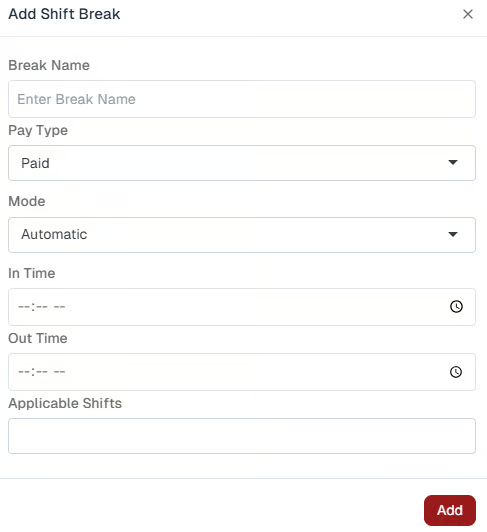
**Upon clicking Add Break, a box opens asking for:**
* **Break Name** – Specifies the name of the break.
* **Pay Type (Paid / Unpaid)** – Defines whether the break duration is paid or unpaid.
* **In Time** – Specifies the start time of the break.
* **Out Time** – Specifies the end time of the break.
* **Applicable Shift** – Specifies the shift to which the break applies.
* **Save** – Once saved, the break is added to the list and visible in the break records.\
\
**Export:**\
\
Used to export the break details into Excel/CSV format.
#### 4. Floating Week Offs Section
#### Purpose :
The Floating Week Offs feature gives flexibility to assign custom week-off days to specific employees.\
The **Floating Week Off** feature in Pletox allows organizations to provide flexible weekly offs to employees instead of fixed weekly off days. When enabled, the employee’s weekly off can vary.
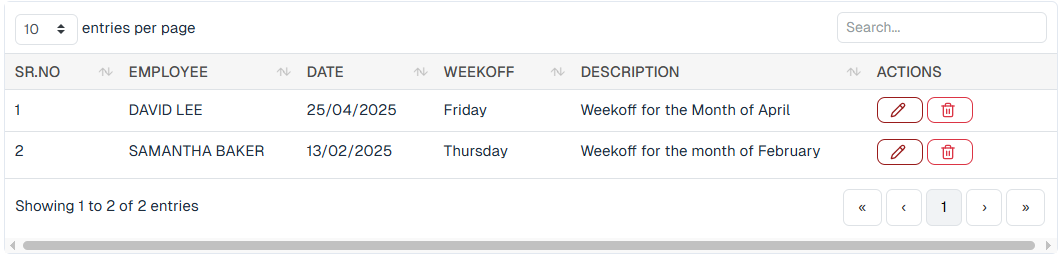
**Details Displayed:**
The section displays:
* **Employee Name** – Displays the name of the employee.
* **Week Off** – Displays the assigned weekly off day.
* **Date** – Displays the applicable date of the week off.
* **Description** – Displays additional details.
* **Action** – Allows users to edit or delete the record.
**Top Action Button :**\
**Filter:**
* **Employee** – Select a specific employee
* **From Date / To Date** – Filter by date range
* **Clear** – Reset all applied filters
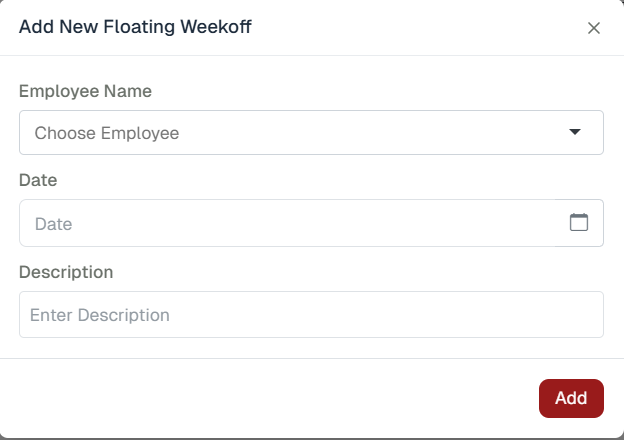
**Add Floating Week Off:**\
\
When clicked, a form appears asking for:
* **Employee Name** (only those employees name comes in drop down who have permission of floating Week off, in settting from employe edit section
* **Date** – Displays the date of the record.
* **Description** – Displays additional details or remarks.
#### Steps to Enable Floating Week Off
1. Go to **Settings**.\
\

2. Navigate to **Organization → Employees**.\
\

3. Search and select the **employee.**
4. Click **Edit** for the selected employee.
5. Locate the option **Enable Floating Week Off**.
6. Tick the checkbox to enable the floating week off for that employee.
7. Save the employee details.
After submitting, the floating week off is assigned to the respective employee and displayed in the list.