> For the complete documentation index, see [llms.txt](https://help.pletox.com/llms.txt). Markdown versions of documentation pages are available by appending `.md` to page URLs; this page is available as [Markdown](https://help.pletox.com/reimbursements.md).
# Reimbursements
The Reimbursement module in Pletox is used when an employee incurs official expenses from their own pocket and requests reimbursement from the company.
After approval, the reimbursed amount can be **paid through salary or in cash**, depending on the selected mode of payment.
This module ensures transparent expense tracking, approval control, and accurate payroll integration.
### Access & Navigation:
At the top of the Reimbursement screen, the following buttons are available **based on user access**:
* **Myself** – View own reimbursement requests
* **My Team** – View team members’ reimbursement requests (for managers)
* **Filters** – Apply filters to search reimbursement data\
Available Filters:
* **Search** – Allows keyword-based search to quickly find records.
* **Start Date** – Filters records from the selected start date.
* **End Date** – Filters records up to the selected end date.
* **Employee** – Filters data for a specific employee.
* **Company** – Filters records based on the selected company.
* **Department** – Filters employees by department.
* **Location** – Filters records by work location.
* **Group** – Filters records based on employee group.
* **Category** – Filters employees by category.
* **Has Contractor** – Filters records to show contractor or non-contractor employees.
* **Clear** – Clears all applied filters and resets the reimbursement list
These filters help in quickly locating reimbursement requests based on employee, date range, organizational structure, or employment type.
**Resigned Employee Filter (Reimbursement):**
The Reimbursement module includes a **Resigned toggle** to view reimbursement records of employees who have resigned.
* The **Resigned toggle** becomes visible after clicking on the **Filter** option.
* When the **Resigned toggle is enabled**, the reimbursement list displays **only resigned employees’ reimbursement entries**.
* When the toggle is disabled, the report shows reimbursement records of **active employees** by default.
* **Export** – Export reimbursement data
* **Add Reimbursement** – Apply for a new reimbursement request
* **Access Control:**\
**Super Admin** has full access, including approval\
**Employees** can view, Creat, edit, or delete reimbursements based on permissions.\
\
**Managers** can view their team’s reimbursement requests if enabled
### Add Reimbursement:
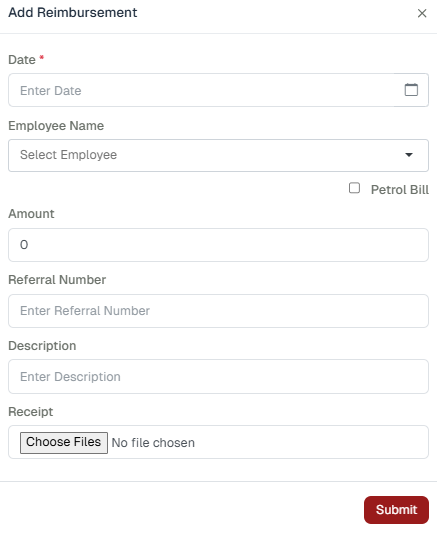
Clicking **Add Reimbursement** opens a dialog box to submit a reimbursement request. fields opens:
* **Date** – The date on which the transaction or expense is recorded.
* **Employee Name** – The name of the employee associated with the record.
* **Amount** – The monetary amount involved in the transaction.
* **Referral Number** – A reference or tracking number used for identification.
* **Description** – Brief details explaining the purpose of the entry.
* **Receipt** – An uploaded proof document (bill or invoice) related to the amount.
Then click **Submit** to raise the request.\
\
**If the reimbursement is related to petrol expenses, the user must:**
* **Tick the Petrol Bills checkbox**\
Select this option to add a petrol/fuel expense claim.
* **Fill in the required details:**
* **Date** – Select the date of the travel.
* **Employee Name** – Choose the employee for whom the expense is being submitted.
* **Trip Distance** – Enter the total distance traveled (in km).
* **Fuel Rate** – Rate per km or per unit, predefined by the admin.
* **Amount** – Total fuel expense amount (auto-calculated or entered as per system).
* **Referral Number** – Enter the reference or bill number, if available.
* **Description** – Add a short note explaining the trip or expense.
* **Receipt** – Upload the petrol bill or receipt as proof.
* **Click Submit**\
Submit the petrol bill claim for approval.
### Reimbursement Report Columns:
The Reimbursement list displays the following columns:
**Reimbursement Actions:**
**Edit :**\
\
The **Edit** button allows users to modify reimbursement details if required.
**Delete:**
button is used to **remove a reimbursement request** from the system.\
\
**View:**
Clicking **View** allows the user to see detailed reimbursement information, including:
* Mode of Payment (Cash / Salary)
* Type (Credit / Debit)
* Amount
* Referral Number
**Action buttons available:**
* Edit
* Delete
**Edit:**
In **Edit**, users can update:
* Date
* Amount
* Mode of Payment
After making changes, click **Update**.
#### Add Transaction:
At the top of the View screen, an **Add Transaction** button is available.
Clicking this opens a dialog box to enter:
* Date
* Amount
* Referral Number
* Mode of Payment
Click **Add** to save the transaction.
### Approval Workflow
1. Employee submits a reimbursement request
2. Status is set to **Pending**
3. **Super Admin / Admin** reviews:
* Receipt
* Description
* Amount
4. The request is **Approved or Rejected**
5. Status updates accordingly:
* Pending → Approved
* Pending → Rejected
Approved reimbursements are then paid either:
* Through **salary**, or
* As **cash payment**, based on the selected mode
### Reimbursement Permissions
Reimbursement access is configured from:
**Settings → Organization → Employee → Edit → Permission Tab → Payroll → Reimbursement**\
\
\
\

**Save** the given permission
#### Available Permission Toggles:
* View (Myself)
* View (My Team)
* View (My All)
* Create
* Edit
* Delete
* Can Approve
* **Permission Rules:**
* **Super Admin / Admin**: Can Approve (toggle enabled)
* **Employee**: View Myself, Create, Edit, Delete (based on access)
**Manager**: View My Team (if enabled)
### Notification to Super Admin
* As soon as a reimbursement request is raised, a **notification is sent to the Super Admin’s Inbox**.
* The notification ensures that reimbursement requests are **not missed or delayed**.
### Inbox Review:
From the Inbox, the Super Admin can:
* Open the reimbursement request
* View **all submitted details**, including:
* Employee name and ID
* AmounDate and description
* Uploaded bills or documents (if any)
### Approval or Rejection
After reviewing the request, the Super Admin can take one of the following actions:
* **Approve**\
The reimbursement request is approved and its moved forward for payroll or payout processing.
* **Decline**\
The reimbursement request is rejected if details are incorrect or policy conditions are not met.