> For the complete documentation index, see [llms.txt](https://help.pletox.com/llms.txt). Markdown versions of documentation pages are available by appending `.md` to page URLs; this page is available as [Markdown](https://help.pletox.com/attendance.md).
# Attendance
The Attendance Module in Pletox helps superadmins and employees manage, record, and track daily attendance and working hours efficiently. It ensures accuracy in employee presence tracking and support
**General Concept of Attendance:**
The Attendance Module tracks each employee’s working hours, attendance status, and in/out timings.
Employees can view their own daily and monthly records.\
Superadmins have complete visibility and control over all employee attendance data.\
The system supports manual attendance correction, filtering, and exporting \
reports for analysis.
#### Attendance Settings (Configuration Settings)
**Navigation Path:**\
\
**Settings → Configuration Settings → Attendance Settings**\
\


These settings control how attendance is captured, calculated, and displayed across the system.\
**Toggles:**
* **Include Users on Leave in Absent Count/List**\
When enabled, employees who are on approved leave will also be counted and shown as absent.
* **Mark Absent on No Clock Out**\
When enabled, an employee will be marked absent if they fail to clock out.
* **Disable Mobile Attendance**\
When enabled, employees will not be able to clock in or clock out using the mobile application.
* **Multi Clock In/Out**\
When enabled, employees can perform multiple clock in and clock out entries in a single day.
* **Hide Clock In/Out Time**\
When enabled, only attendance status and remarks will be visible, and clock in/out times will be hidden.
* **Location While Clock In/Out**\
When enabled, the employee’s current location will be captured during clock in and clock out.
* **Selfie While Clock In/Out**\
When enabled, a selfie will be captured during clock in and clock out for verification.
* **Break In/Out**\
When enabled, employees can record break in and break out times using the mobile app.
* **Employee Wise Weekoff**\
When enabled, custom weekly offs can be configured individually for each employee.
* **Round Off Time**\
When enabled, attendance time will be rounded off to the nearest hour.
* **Capture Fields On Clock-in**\
When enabled, employees will be required to fill defined custom fields at the time of clock in.
* **Block Clock-in after Grace Period**\
When enabled, employees will not be allowed to clock in once the shift grace period has passed.
* **Overnight Clock Out**\
When enabled, employees can clock in or clock out even after the date changes.
* **On Duty Integration with Timesheet**\
When enabled, approved On Duty requests are automatically reflected in the timesheet.
* **Enable OT Policy**\
When enabled, the advanced overtime policy will be applied to attendance calculations.
* **Save**\
Saves and applies all configured attendance settings.
## **Attendance for Superadmins :**
Superadmins have full access to the Attendance Module. They can view all employee records, monitor daily and monthly reports, make manual updates, and export data for payroll or HR reporting.\
\
**Features :**
Superadmins can access the following features on the Attendance screen:
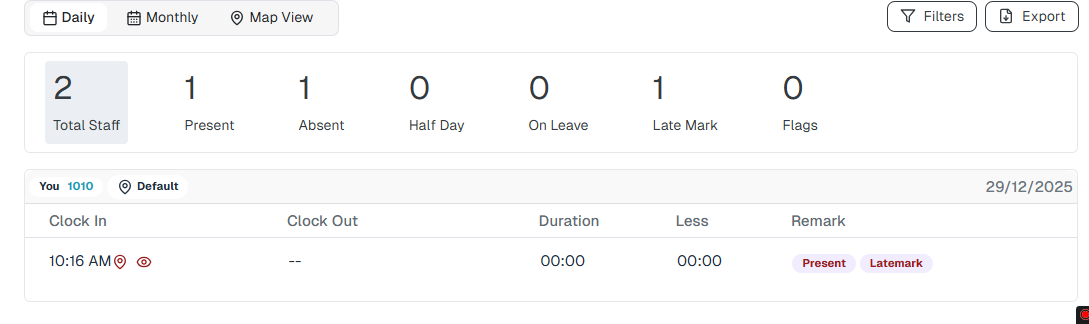
**1. Daily View / Monthly View / Map View.**
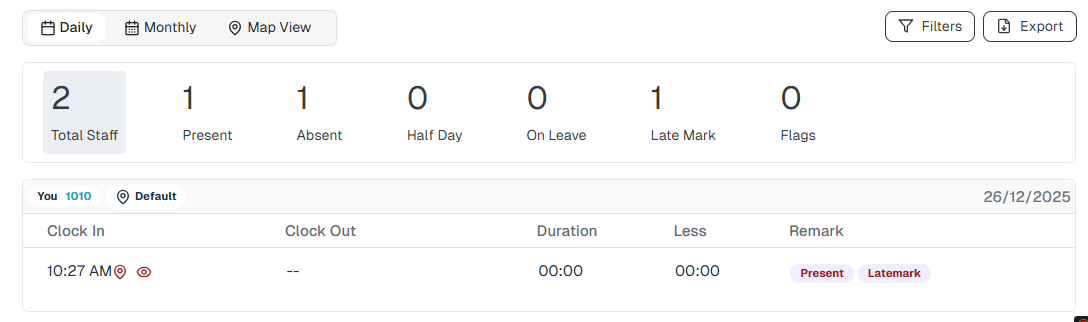
**Daily View:** Displays attendance records for the current day.
**Monthly View**: Shows each employee’s attendance summary for the current **month.**
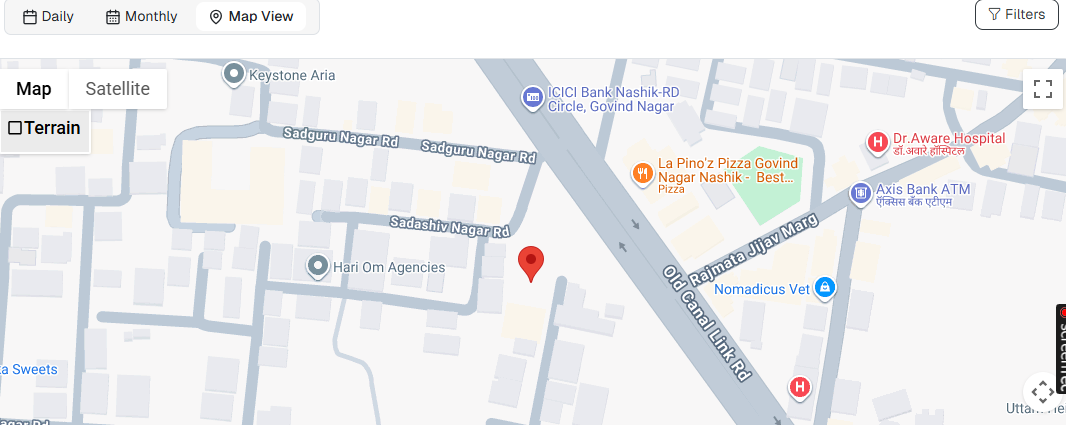
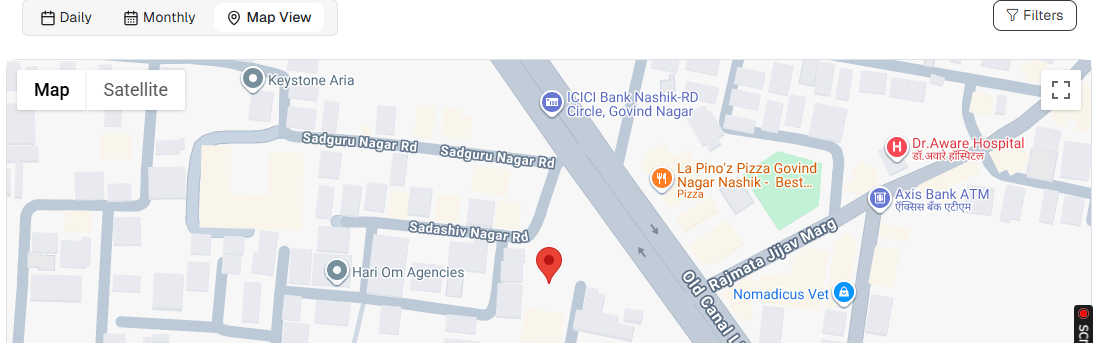
**Map View:** Displays real-time map-based clock-in and clock-out locations.
**2. Attendance Summary Cards (displayed on the top section)**
**Total Staff**: Displays the total number of active employees.
**Present:** Shows how many employees are present on the selected date.
**Absent:** Indicates employees who did not attend work for the day.
**Half Day**: Displays employees who worked for half a shift.
**On Leave:** Shows employees currently on approved leave.
**Late Mark:** Highlights employees who clocked in after the scheduled time.
**Flags:** Marks entries requiring verification or manual correction (e.g., missing\
clock-out).\
\
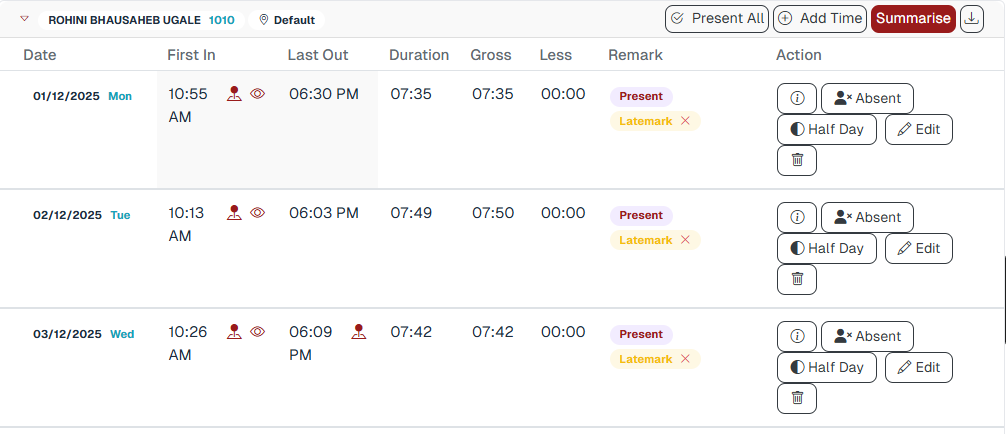
**3. Attendance Table**
Displays daily attendance records with the following columns:
* **Employee Name** – the employee for whom the attendance record is created.
* **Date** – Indicates the attendance date.
* **First In Time** – Records the employee’s first check-in time.
* **First Out Time** – Records the employee’s first check-out time.
* **Duration (Total Working Hours)** – Shows the total hours worked for the day.
* **Less Hours (if any)** – Displays shortfall hours, if the employee worked less than required.
* **Remarks (Present / Absent / Half Day / On Leave)** – Indicates the employee’s attendance status.
### Additional Controls
In the **Attendance module**, four utility buttons are available beside the employee name. These are **system-level controls** and not regular action buttons. They help Superadmins manage attendance efficiently for a selected employee and month.
**1) Present All**\
The **Present All** option is used to mark an employee as present for all working days of the selected month.
* This option is generally used for correction or bulk attendance marking.
**2) Add Time**\
The **Add Time** option allows manual entry or correction of clock-in and clock-out times for a specific date.
**3) summarize:** The **Summarize** button in the Attendance module allows the\
**Superadmin** to recheck and recalculate employee attendance data.\
This ensures that attendance records are accurate before they are used for\
**payroll processing**.
**4) Download**\
The **Download** option allows downloading the complete monthly attendance report.\
\
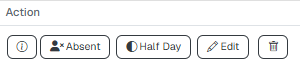
**4. Action Buttons**
**Absent :**The **Absent** option is used to mark an employee as absent for a\
selected day.
**Half Day** : The **Half Day** option is used when an employee has worked for only\
part of the day or is eligible for half-day attendance.
**Edit:** Modify incorrect or missing attendance entries.
**Delete** : Remove any mistakenly added attendance record.
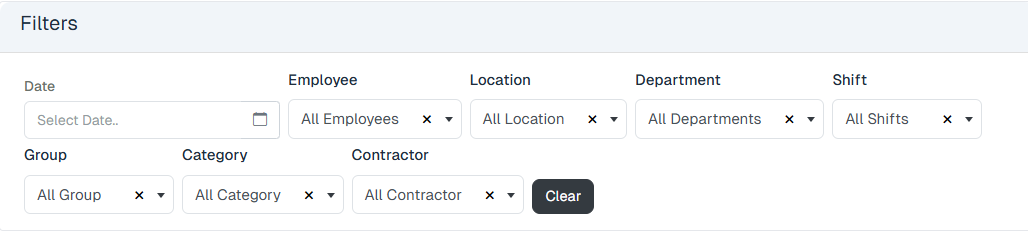
**Filter:** Filter data by employee name, department, or specific date.\
Filters Available for Superadmin
Superadmins can filter attendance data using the following criteria:
* **Employee Name** – Filters records by the selected employee.
* **Department** – Filters records based on the employee’s department.
* **Date** – Filters records for the selected date.
* **Location** – Filters records based on work location.
* **Shift** – Filters records by assigned shift.
* **Group** – Filters records based on employee group.
* **Category** – Filters records based on employee category.
* **Contractor** – Filters records based on the associated contractor.
The Clear Filter option resets all applied filters for a fresh search.
**Export**: Download attendance reports in Excel or CSV format.\
Superadmins can easily export attendance data to generate analytical\
reports.or share them with other departments. The export can include:
Daily or monthly attendance data
Employee-wise or department-wise reports
Summaries for payroll processing
### **Attendance for Employees**
Employees have limited access to the Attendance Module. They can view their own attendance records, monitor total working hours, and check for late marks or absences.\
Features Available to Employees\
\
**Self-View Only:**\
Employees can view and verify their own records but cannot edit or delete\
any entries.
**1. Daily View:**
Shows attendance for the current date with clock-in and clock-out details.
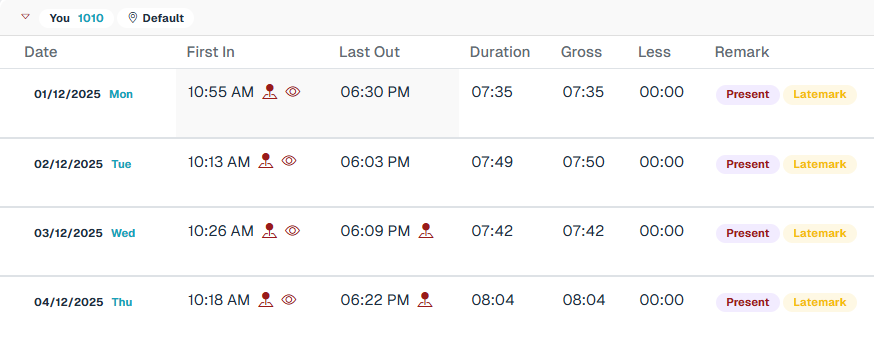
**2. Monthly View:**
Displays attendance records for the selected month.
**3. Map View:**
Allows employees to verify their live clock-in and clock-out locations.
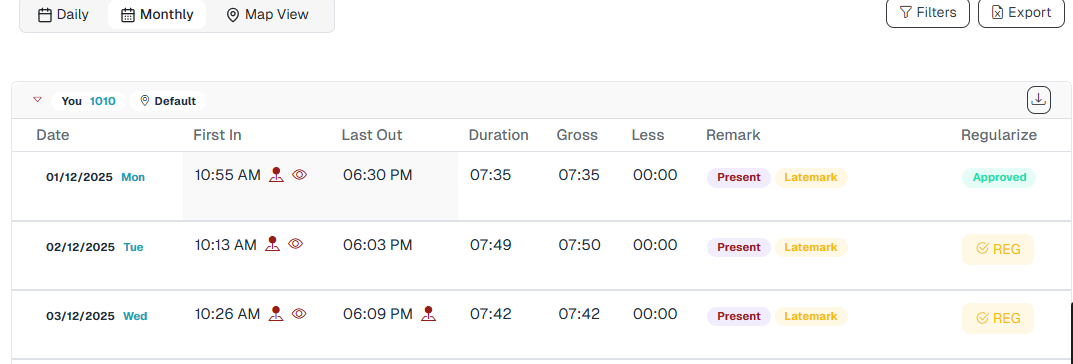
**4. Attendance Details Table:**
Displays:
* **First In Time** – Displays the employee’s first check-in time for the day.
* **First Out Time** – Displays the employee’s first check-out time for the day.
* **Duration** – Shows the total working hours for the day.
* **Less** – Indicates any shortfall in required working hours.
* **Remark** – Shows the attendance status or related notes.
* **Regularize :**\
\
The **Attendance Regularization** feature in Pletox allows employees Regularize\
their attendance in case they **forget to clock in, forget to clock out, or need**\
**to modify incorrect punch timings**.
#### Employee Regularization Workflow :
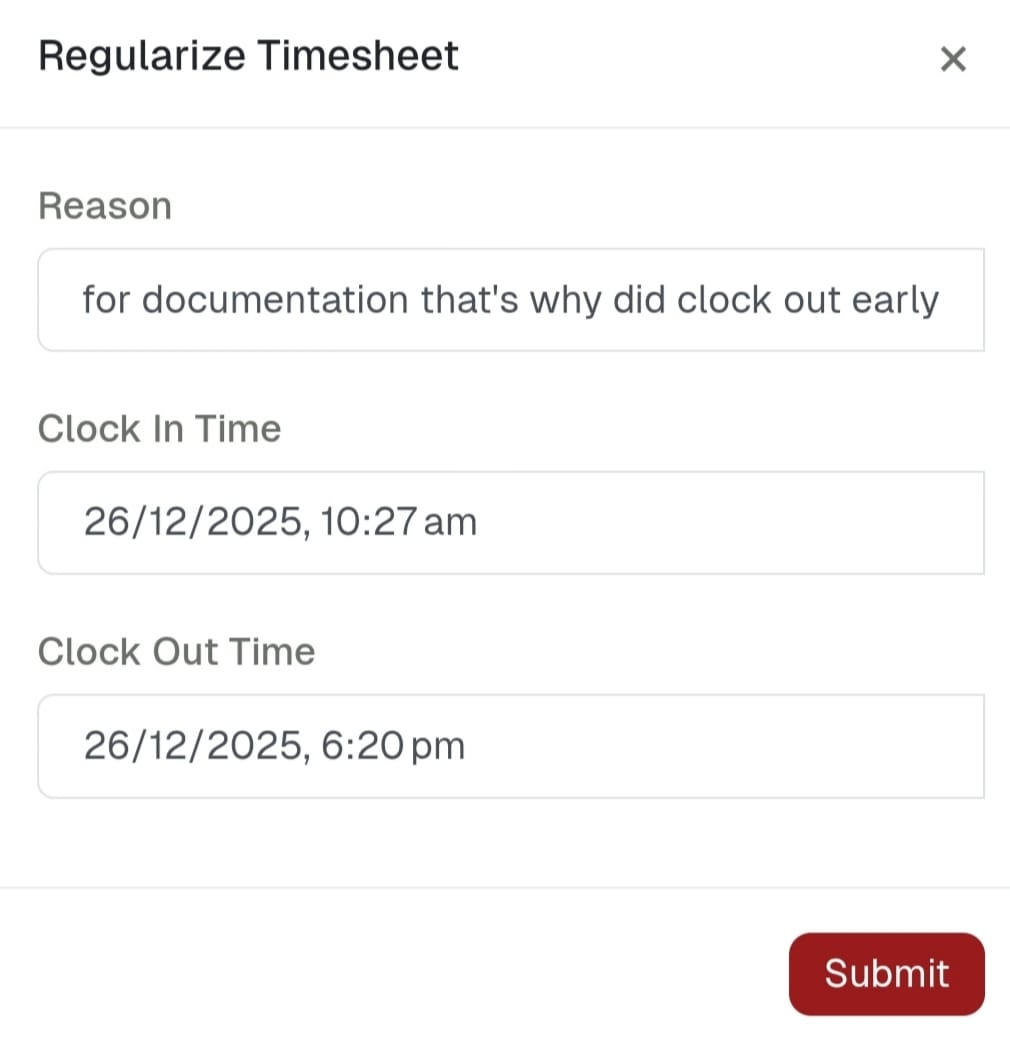
**Step 1: Submit regularization Request**
1. After clicking **Regularize**, a dialog box opens.
2. The employee is required to enter the following details:
* Reason for regularization
* Correct Clock In time
* Correct Clock Out time
3. Click **Submit** to send the request.
4. The regularization request is submitted successfully.
5. The request is sent to the **Superadmin for approval**.
6. Attendance remains unchanged until approval.
### Attendance Workflow
#### Step 1: Accessing Attendance from Dashboard
1. The user logs in to Pletox.
2. On the **Dashboard**, the user can see the **Clock In** button.\
with welcoming meassge.
#### Step 2: Clock In
1. The user clicks on **Clock In**.\
2. The system opens the **camera**.\
\

3. The user captures a **selfie** for verification.
4. Location is captured.
5. Below the camera screen, the **Clock In** button is displayed.
6. The user clicks **Clock In** to confirm.
7. The clock-in entry is saved in the **Timesheet**.
8. Working hours start calculating from the punch-in time.
9. The **Clock In** button changes to **Clock Out**.
#### Step 4: Clock Out
1. At the end of the working day, the user clicks **Clock Out**.
2. **Worklog Requirement on Clock Out** :
\
Pletox allows organizations to **mandate worklog submission at the time of clock out**.\
\
When this setting is enabled, employees must submit a **worklog report** before they can successfully clock out.
This ensures daily work accountability and accurate task tracking.
3. **Configuration Path :**
**Settings → Companies → Attendance Settings**
4. The camera opens again.\
\

5. A selfie is captured for clock-out verification.
6. The system captures the **location**.
7. The user clicks **Clock Out** to confirm.
8. Punch-out time is recorded.
9. Working hours calculation stops.
10. Attendance for the day is finalized.
### Attendance Record Update
* Clock-in and clock-out data automatically reflect in the **user’s attendance record**.
* Attendance details include:
* Clock-in time
* Clock-out time
* Total working hours
* Selfie and location verification.
\
\
\
\
\
\
\
\