> For the complete documentation index, see [llms.txt](https://help.pletox.com/llms.txt). Markdown versions of documentation pages are available by appending `.md` to page URLs; this page is available as [Markdown](https://help.pletox.com/tds-deduction.md).
# TDS Deduction
The TDS module in Pletox is used to manage and track income tax deductions (TDS) for employees as per applicable income tax rules.
It helps payroll administrators record, schedule, and deduct TDS amounts accurately during payroll processing.
The deducted TDS amount is reflected in:
* Salary calculation
* Payslip
* Form 16
* Payroll reports
### Tabs in TDS Module :
**1. Deductions :**
This tab is used to:
* Add one-time or recurring TDS deduction entries for employees
* View and manage employee-wise TDS records
**2. Schedule :**
This tab is used to:
* Schedule TDS deductions over a specific period or frequency
* Automatically apply TDS deductions during payroll runs
### Top Action Buttons :
**Filters :**
Used to narrow down TDS records based on selected criteria such as:
* Employee
* Date
* Company
* Department
* Location
* Group
* Category
* Has Contractor\
Click **Clear** to reset all applied filters.
**Export:**
Used to download TDS data for reporting and compliance purposes.
**Import:**
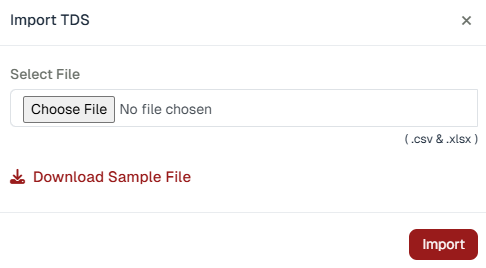
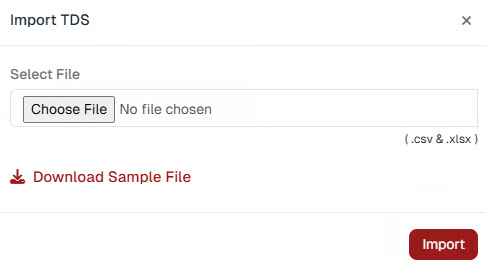
It is used to **add multiple records at once** instead of entering data manually.
* Supported file formats:\
**CSV**
**XLSX**
* Workflow:
1. Click **Import**
2. Select the file
3. Click **Import**
4. All valid entries are uploaded in bulk
#### Add TDS Entry:
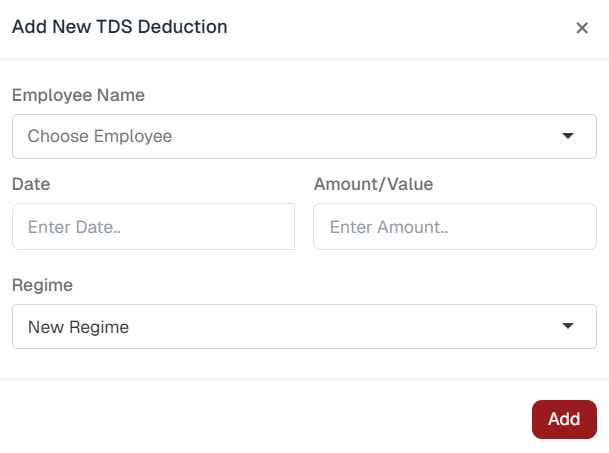
Used to **manually add a new TDS deduction entry** for an employee.
**Employee Name:**\
Select the employee for whom the TDS deduction is being added.
**Date:**\
Enter the effective date of the TDS deduction. This date determines the payroll period in which the TDS will be applied.
**Amount / Value:**\
Enter the amount of TDS (in INR) to be deducted from the employee’s salary.
**Regime:**\
Select the applicable income tax regime for the employee:
* **New Regime**
* **Old Regime**
The selected regime is used to calculate and track the employee’s tax liability correctly.
#### Action Button:
**Add:**\
Click **Add** to save the TDS entry. Once saved:
* The TDS amount is included in payroll calculation
* The amount is reflected in **TDS reports and Form 16**
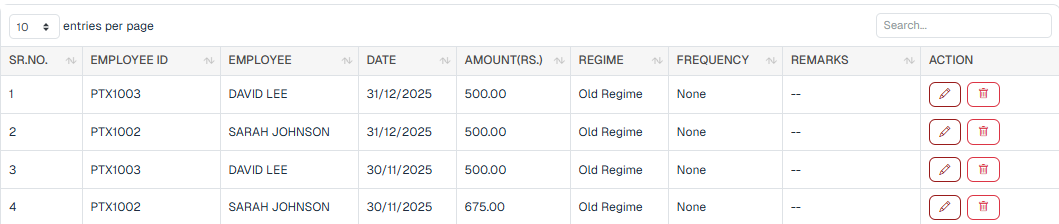
### Table Columns Explained :
**SR. NO.:**
A serial number automatically generated for each TDS record.
**Employee ID:**
Unique system-generated ID assigned to the employee.
**Employee:**
The full name of the employee for whom TDS is deducted.
**Date:**
The effective date on which the TDS deduction is applicable.
**Amount (Rs.):**
The **TDS amount** deducted from the employee’s salary for the given date or period.
#### **Regime :**
Indicates the **income tax regime** selected by the employee:
* **Old Regime** – Allows tax deductions and exemptions
* **New Regime** – Lower tax rates with limited deductions
#### Frequency:
Defines how often the TDS deduction applies:
* **None** – One-time deduction
* Monthly / Quarterly (if configured)
#### Remarks:
Optional notes or comments related to the TDS entry
#### TDS Deduction For Employee:
Top Action Buttons:
**Filters :**
Used to narrow down TDS records based on selected criteria such as:
* Employee
* Date
* Company
* Department
* Location
* Group
* Category
* Has Contractor\
Click **Clear** to reset all applied filters.
**Export:**
Used to download TDS data for reporting and compliance purposes.
**Import:**
It is used to **add multiple records at once** instead of entering data manually.
* Supported file formats :\
**CSV**
**XLSX**
* Workflow :
1. Click **Import**
2. Select the file
3. Click **Import**
4. All valid entries are uploaded in bulk
#### Add TDS Entry :
Used to **manually add a new TDS deduction entry** for an employee.
**Employee Name:**\
Select the employee for whom the TDS deduction is being added.
**Date:**\
Enter the effective date of the TDS deduction.This date determines the payroll period in which the TDS will be applied.
**Amount / Value:**\
Enter the amount of TDS (in INR) to be deducted from the employee’s salary.
**Regime:**\
Select the applicable income tax regime for the employee :
* **New Regime**
* **Old Regime**
The selected regime is used to calculate and track the employee’s tax liability correctly.
#### Action Button:
**Add:**\
Click **Add** to save the TDS entry. Once saved:
* The TDS amount is included in payroll calculation
* The amount is reflected in **TDS reports and Form 16**
#### Access Note:
Only users with **Create permission** under the **TDS module** can add a new TDS deduction
### Table Columns Explained:
**SR. NO. :**
A serial number automatically generated for each TDS record.
**Employee ID :**
Unique system-generated ID assigned to the employee.
**Employee :**
The full name of the employee for whom TDS is deducted.
**Date :**
The effective date on which the TDS deduction is applicable.
**Amount (Rs.) :**
The **TDS amount** deducted from the employee’s salary for the given date or period.
#### **Regime :**
Indicates the **income tax regime** selected by the employee:
* **Old Regime** – Allows tax deductions and exemptions
* **New Regime** – Lower tax rates with limited deductions
#### Frequency :
Defines how often the TDS deduction applies:
* **None** – One-time deduction
* Monthly / Quarterly (if configured)
#### Remarks :
Optional notes or comments related to the TDS entry \
\
**Payroll & Employee Impact :**
* TDS entries created in this module are **automatically deducted during payroll processing**.
* The deducted amount is visible in :
Employee salary view
Payslip
Form 16
### Access & Permissions
* **Super Admin / Payroll Admin**: Full access (View, Create, Import, Export)
* **Employees**: access (based on permissions)
Permissions are managed from :\
**Settings → Organization → Employees → Edit → Permission Tab → Payroll → TDS**\
\
\
\

#### TDS – Employee Access & Permissions
The **TDS module** in Pletox is **permission-based**, and employee access is controlled through specific permission toggles.
**View Permissions:**
Based on the enabled toggles, employees can access TDS records as follows:
* **View (My All)**\
Allows viewing TDS details of all employees.
* **View (My Team)**\
Allows managers to view TDS details of their team members.
* **View (My Self)**\
Allows employees to view only their own TDS information.
**Action Permissions:**
* **Create** – Allows adding new TDS entries
* **Edit** – Allows modifying existing TDS entries
* **Delete** – Allows removing TDS entries
Enable the required permission toggles and click **Save** to apply the changes.
**TDS Entry and Auto-Deduction Configuration :**
The system allows **both manual and automatic TDS entries**. While TDS can be entered manually from the TDS module, an **automatic deduction option** is also available through employee salary settings
#### Configuration Path:
1. Go to **Settings:**\
\

2. Navigate to Organization\
\

3. Open **Employees** then **Employee Edit** screen
4. Select the **Salary Details** tab
5. Scroll to the **TDS Section** at the end of the page
#### TDS Settings Options :
In the TDS section, the following options are available:
**1. TDS Mode (Dropdown)**
* **Manual** – TDS entries must be added manually in the TDS Deduction module.
* **Auto** – TDS is calculated and deducted automatically by the system.
**2. Tax Regime (Dropdown)**
* **Old Regime**
* **New Regime**
The selected regime will be used for TDS calculation as per applicable tax rules.
**3. Deduction Duration (Dropdown)**
You can define how TDS should be deducted:
* Monthly
* Quarterly
* Half-Yearly
* Yearly
#### Saving and Execution :
* Click the **Save** button after selecting the required options.
* If **Auto** mode is selected :
The system will automatically calculate TDS based on salary details and selected tax regime.
A **TDS deduction entry is automatically created** under the **TDS Deduction module**.\
\
The deducted amount will reflect in payroll accordingly.
\
\
\