> For the complete documentation index, see [llms.txt](https://help.pletox.com/llms.txt). Markdown versions of documentation pages are available by appending `.md` to page URLs; this page is available as [Markdown](https://help.pletox.com/run-payroll.md).
# Run Payroll
The Run Payroll module in Pletox is used to calculate, generate, review, and finalize employee salaries for a selected payroll month.
It consolidates attendance data, earnings, deductions, statutory components, and allowances to generate accurate payroll reports and payslips.
**Manual salary calculation is not required** during payroll processing.
This ensures accuracy, compliance, and consistency across payroll runs.
This module is **permission-based**:
* **Super Admin** has complete access to run and manage payroll across companies and locations.
* **Employees** can only view and download their own finalized payslips.
### Purpose and Importance
The Run Payroll module helps organizations to:
* Process salaries accurately for a selected month
* Manage payroll for multiple companies and locations from a single platform
* Generate statutory and salary reports for compliance
* Control payroll finalization before releasing payslips
* Maintain payroll transparency and audit readiness
#### Superadmin Access :
* **Superadmin has full access** to the Run Payroll module by default.
Superadmin can :
* Run payroll for any company, location, or employee
* Finalize or revoke payroll
* View all payroll reports
* Export all payroll reports
* Payroll processing and finalization are **Superadmin-level actions**
**Admin Access:**\
\
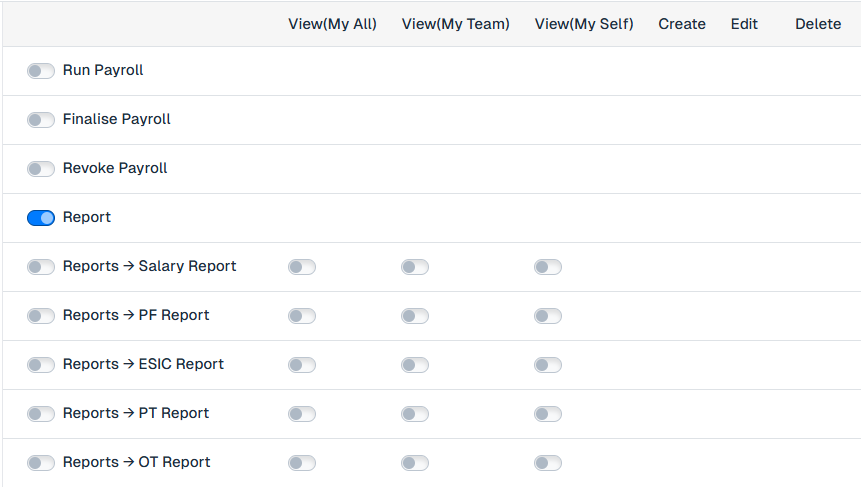
**How to Grant Payroll Access to an Admin :**
To provide payroll access to an Admin, follow the steps below:
**Navigation Path:**\
**Settings → Organization → Employees → Employee List → Edit → Permission Tab**
Under the **Payroll** section:
* All payroll-related permission toggles are visible
* Enable the required permission toggles based on the access you want to grant
After enabling the necessary permissions, click the **Save** button to apply the changes.
Once saved, the Admin will be able to perform payroll actions as per the permissions granted.
* Superadmin can **assign Run Payroll and Reports permissions to Admin users**.
* Admin access is configurable and depends on the permissions granted.
**Employee Access:**
* **Employees cannot run payroll**.
* Even if payroll-related permissions exist, employees are restricted to **report-level access only**.
* Employees can:
* View their own payroll reports ( access required )
* Download or export their own payslips and salary reports
### Payroll Processing Workflow:
### Step 1: Access Run Payroll
On this screen, the system provides options to process payroll either for:
* All employees, or
* A specific employee (using Advanced button )
### Step 2: Select Payroll Month
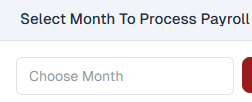
At the top of the screen, select the **Month and Year** for which payroll needs to be processed.
This selection determines:
* Attendance data considered
* Salary components calculation
* Statutory deductions for that period
### Step 3: Run Payroll
After selecting the month, click on the **Run Payroll** button.
#### What Happens Next :
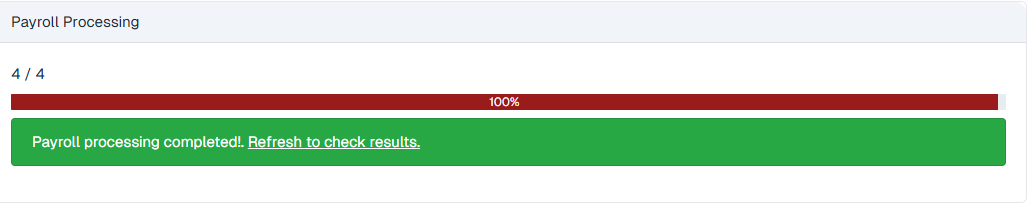
* A **green progress bar** appears on the screen
* The bar indicates that payroll is being processed
* Once completed, the system displays a message prompting you to **Check Result**
### Step 4: Check Payroll Results
Click on **Check Results** once payroll processing is complete.
A payroll summary table is displayed for the selected month.
### Payroll Summary Table Details:
The generated payroll table shows:
* **Month & Year** – Payroll period
* **Total Employees Count** – Number of employees included
* **Total Basic Salary Amount** – Combined basic salary
* **Total Net Paid Salary Amount** – Final payable salary
Each payroll initially appears with a **Draft** status.
### Advanced Payroll (Specific Employee Payroll):
An **Advanced Toggle** is available at the top of the screen.\
\
When enabled, it allows payroll processing for a specific employee instead of applying to all employees.
**When Advanced Toggle is Enabled:**
* **Additional fields appear:**
**Choose Month**\
**Choose Employee**
* Payroll can be run for a **specific employee only**
* **Useful for:**\
Salary corrections
New joiners
Re-processing individual payrolls
Once selected, click **Run Payroll** to process payroll for that employee.
### Payroll Finalisation :
At the top of the payroll summary, the **Finalize** button is available.
**Finalise Button Usage**
* Clicking **Finalise** confirms payroll for the selected month
* Payslips become available to employees in their profile section in payslips
* Payroll status changes from **Draft** to **Finalised**
After finalization:
* The **Finalise** button changes state to **Finalised**
* A **Revoke** button appears beside it
### Revoke Payroll
The **Revoke** button is used to:
* Roll back the payroll process
* Undo payroll finalization
* Allow corrections and reprocessing
This option gives Super Admin full control over payroll accuracy before salary disbursement.
### Payroll Reports Section:
Once payroll is generated, the following **five reports** are available:
1. **Salary Report**
2. **PF (Provident Fund) Report**
3. **ESIC Report**
4. **PT (Professional Tax) Report**
5. **OT (Overtime) Report**
Each report includes a **View** option to open detailed data.
#### Salary Report:
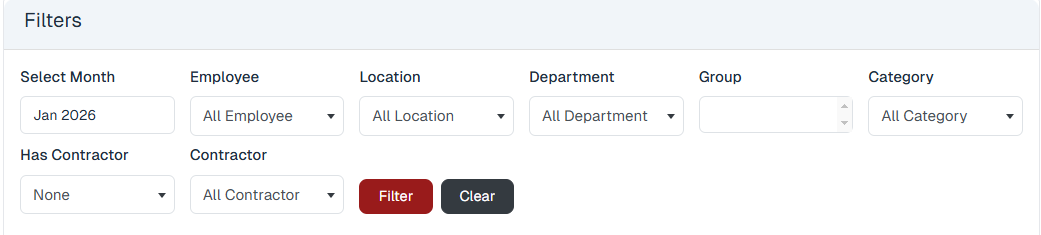
**Salary Report – Filters:**
The **Salary Report** includes advanced filtering options.
Filters available:
* **Month** – Filters records for the selected month.
* **Employee** – Filters records for the selected employee.
* **Location** – Filters records based on the selected location.
* **Department** – Filters records based on the selected department.
* **Group** – Filters records based on the selected group.
* **Category** – Filters records based on the selected employee category.
* **Contractor** – Filters records based on the associated contractor.
#### Action Buttons:
* **Filter** – Applies selected filters
* **Clear** – Clears all applied filters
A **Filter button** is also available at the top to apply all filters at once.
### Export Salary Reports:
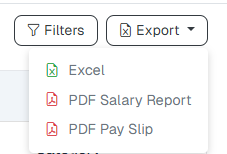
The **Export** option allows downloading salary data in multiple formats:
* **Excel Salary Report** – Downloads the salary data in Excel format for analysis and records.
* **PDF Salary Report** – Downloads the salary data as a PDF report for sharing.
* **PDF Payslips** – Downloads individual payslips for **all employees** in PDF format.
This helps in payroll sharing, auditing, and record keeping.
#### Salary Template Selection :
In the **Salary Report** and **PF Report**, the system provides a **Salary Template dropdown** at the top of the report.
* Users can switch between different **salary templates** using this dropdown.
* The report data updates automatically based on the selected salary template.
* This helps in viewing payroll data accurately for employees who are assigned to different salary structures.
### Salary Report Columns:
#### Salary Report – Overview
The **Salary Report** provides a detailed summary of employee salary data for a selected payroll period. It helps administrators review, verify, and manage payroll information before and after salary processing.
Once payroll is **generated**, the salary Report Button are displayed in a **payroll table after click on that view button visible**, button opens the **detailed Salary Report** for the employee.
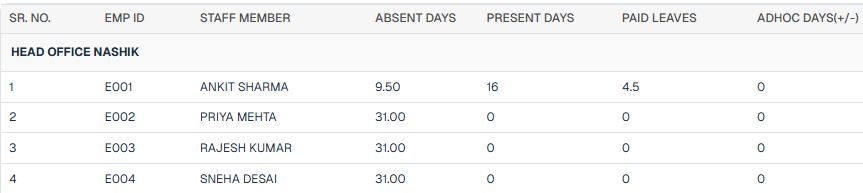
The Salary Report contains detailed payroll components, including:
* **Serial Number** – Displays the serial number of the record.
* **Employee ID** – Displays the unique ID of the employee.
* **Staff Member Name** – Displays the name of the employee.
* **Absent Days** – Displays the total number of absent days.
* **Present Days** – Displays the total number of days the employee was present.
* **Paid Days** – Displays the total number of payable days for salary calculation.
* **Ad-hoc Days** – Displays additional payable or adjusted days added manually.
* **Weekly Offs** – Displays the total number of weekly off days.
* **Holidays** – Displays the total number of holidays applicable in the period.
* **Basic Salary** – Displays the basic component of the employee’s salary.
* **HRA** – Displays the House Rent Allowance amount.
* **Special Allowances** – Displays additional allowance components.
* **Overtime Salary** – Displays salary earned from overtime hours.
* **Overtime Bonus** – Displays bonus amount earned through overtime policy.
* **Incentives** – Displays incentive amounts earned by the employee.
* **Total Salary** – Displays the gross salary before deductions.
* **EPF Salary** – Displays the Employee Provident Fund contribution amount.
* **ESIC Salary** – Displays the Employee State Insurance contribution amount.
* **PT Amount** – Displays the Professional Tax deduction amount.
* **TDS Deduction** – Displays the Tax Deducted at Source amount.
* **Standard Deduction (STA)** – Displays the standard salary deduction amount.
* **Hold Amount** – Displays the salary amount kept on hold.
* **Net Salary** – Displays the final payable salary after deductions.
* **Other Applicable Salary Components** – Displays any additional salary components applied to the employee.
### PF Report (Provident Fund Report)
The **PF Report** provides a detailed view of Provident Fund–related salary components for employees for a selected payroll month.\
This report is primarily used for **statutory compliance, audits**
### Accessing the PF Report
1. Generate or open a payroll for the required month.
2. From the **Reports section**, click on **PF Report**.
3. Click **View** to open the detailed PF report.
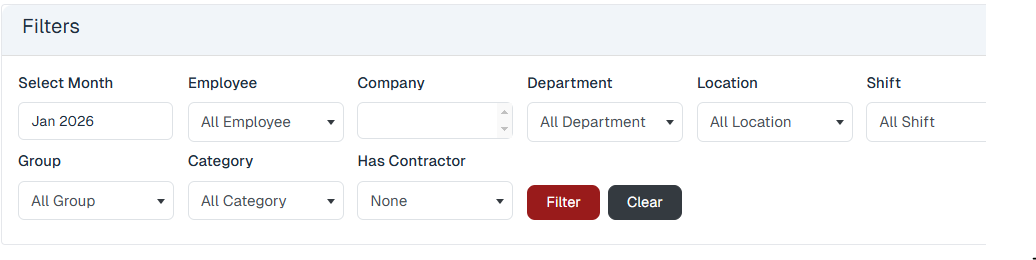
### PF Report Filters:
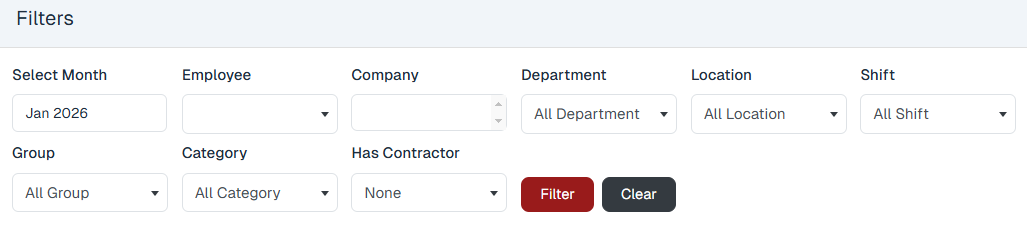
To refine the PF data, multiple filters are available at the top of the report.
#### Available Filters:
* **Select Month** – Filters records for the selected month.
* **Employee** – Filters records for the selected employee.
* **Company** – Filters records based on the selected company.
* **Department** – Filters records based on the selected department.
* **Location** – Filters records based on the selected location.
* **Shift** – Filters records based on the selected shift.
* **Group** – Filters records based on the selected employee group.
* **Category** – Filters records based on the selected employee category.
* **Has Contractor** – Filters records to show employees associated with a contractor.
These filters help in viewing PF data for a specific employee group, department, location, or employment category.
### Filter Actions :
Two action buttons are available:
* **Filter**\
Applies all the selected filter criteria and displays the filtered PF data.
* **Clear**\
Clears all applied filters and resets the report to its default view.
### Export PF Report:
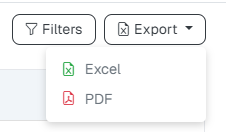
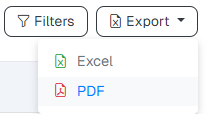
An **Export** button is available at the top of the PF report.
#### Export Options:
* **Excel** – Download the PF report in Excel format
* **PDF** – Download the PF report in PDF format
Users can select the required format based on reporting or compliance needs.
### PF Report Columns :
The PF Report displays the following columns for each employee:
* **Staff Member** – Displays the name of the employee.
* **PF Account Number** – Displays the Provident Fund account number of the employee.
* **UAN Number** – Displays the Universal Account Number linked to the employee’s PF.
* **Gross Salary** – Displays the total salary before deductions.
* **Basic and DA Salary** – Displays the combined Basic salary and Dearness Allowance used for PF calculation.
* **F.P. (Financial Performance)** – Displays the pension-related portion of the PF contribution, if applicable.
* **Employer PF Contribution** – Displays the Provident Fund amount contributed by the employer.
* **Total PF (12%)** – Displays the total Provident Fund contribution calculated at 12%.
Each column shows the **exact PF-related amount calculated for the employee** for the selected payroll month.
### ESIC Report :
The **ESIC Report** provides a detailed view of Employee State Insurance (ESI)–related salary and contribution data for eligible employees. This report helps organizations ensure statutory compliance and simplifies reporting for audits and government filings.
#### Accessing the ESIC Report :
1. Generate or open generated payroll for the required month.
2. From the list of available reports, select **ESIC Report**.
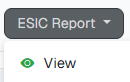
3. Click **View** to open the ESIC report.
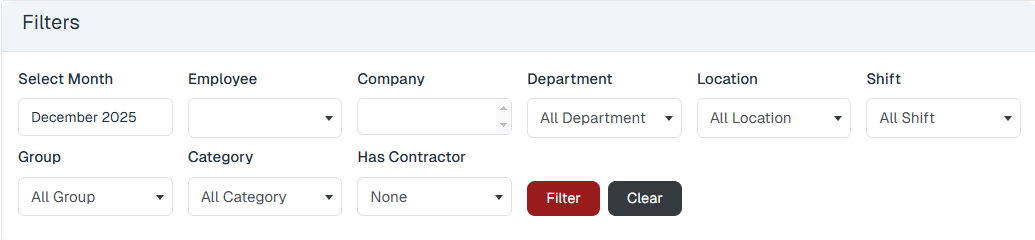
#### Filters Available in ESIC Report:
The ESIC report provides multiple filters to narrow down the data:
* **Select Month** – Filters records for the selected month.
* **Employee** – Filters records for the selected employee.
* **Company** – Filters records based on the selected company.
* **Department** – Filters records based on the selected department.
* **Location** – Filters records based on the selected location.
* **Shift** – Filters records based on the selected shift.
* **Group** – Filters records based on the selected employee group.
* **Category** – Filters records based on the selected employee category.
* **Has Contractor** – Filters records to show only employees linked to a contractor.
Two action buttons are available:
* **Filter** – Applies all the selected filters and displays the filtered data.
* **Clear** – Clears all selected filters and resets the report view.
These filters help administrators quickly locate ESIC data for specific employees, departments, locations, or compliance needs.
#### ESIC Report Columns :
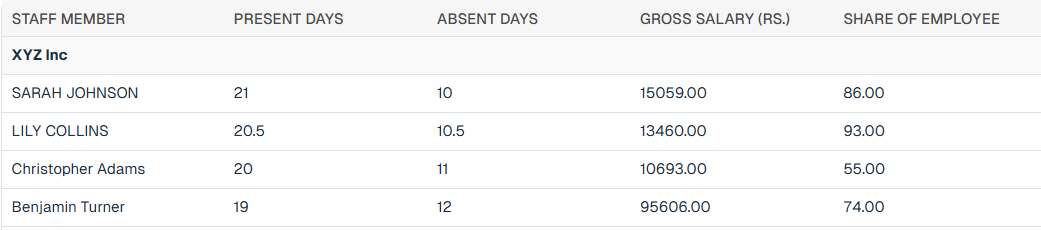
The ESIC report displays the following information for each employee:
* **Staff Member** – Displays the name of the employee.
* **Present Days** – Displays the total number of days the employee was present.
* **Absent Days** – Displays the total number of days the employee was absent.
* **Gross Salary** – Displays the total salary before deductions.
* **Employee ESIC Share** – Displays the ESIC contribution amount deducted from the employee’s salary.
These columns provide a clear breakdown of attendance, salary, and ESIC contribution details for each eligible employee.
#### Export ESIC Report:
At the top of the ESIC report, an **Export** button is available.
Export options include:
* **Excel Format**
* **PDF Format**
This allows the ESIC report to be downloaded for statutory submission, internal audits, record-keeping, or sharing with consultants.
### Professional Tax (PT) Report:
The **Professional Tax (PT) Report** provides a detailed summary of professional tax deductions applied to employees based on applicable state regulations. This report helps organizations ensure statutory compliance and maintain accurate payroll records.
#### Accessing the PT Report:
1. Generate or open the generated payroll for the required month.
2. From the list of available reports, select **PT Report**.
3. Click **View** to open the Professional Tax report.
#### Filters Available in PT Report
The PT report provides multiple filters to refine the data:
* **Select Month** – Filters records for the selected month.
* **Employee** – Filters records for the selected employee.
* **Company** – Filters records based on the selected company.
* **Department** – Filters records based on the selected department.
* **Location** – Filters records based on the selected location.
* **Shift** – Filters records based on the selected shift.
* **Group** – Filters records based on the selected employee group.
* **Category** – Filters records based on the selected employee category.
* **Has Contractor** – Filters records to show employees associated with a contractor.
Two action buttons are available:
* **Filter** – Applies all selected filters and displays the filtered results.
* **Clear** – Clears all applied filters and resets the report view.
These filters help in quickly identifying professional tax deductions for specific employees or organizational units.
#### PT Report Columns:
The Professional Tax report displays the following columns:
* **Staff Member** – Displays the name of the employee.
* **Gender** – Displays the gender of the employee.
* **Gross Salary** – Displays the total salary before deductions.
* **PT Value** – Displays the Professional Tax amount applicable to the employee.
These columns provide a clear view of the employee’s salary details and the professional tax amount deducted.
#### Export PT Report:
At the top of the PT report, an **Export** button is available.
Export options include:
* **Excel Format**
* **PDF Format**
This allows the report to be downloaded for statutory filing, internal audits, payroll verification, and record-keeping.
### Overtime (OT) Report:
The **Overtime (OT) Report** provides a detailed view of overtime worked by employees and the corresponding compensation calculated during payroll processing. This report helps organizations track additional working hours, ensure fair payment, and maintain payroll accuracy.
#### Accessing the OT Report
1. Generate payroll for the required month.
2. From the available reports list, select **OT Report**.
3. Click **View** to open the overtime report.
#### Filters Available in OT Report :
The OT report allows filtering of overtime data using the following options:
* **Start Date** – Filters records from the selected start date.
* **End Date** – Filters records up to the selected end date.
* **Employee** – Filters records for the selected employee.
* **Company** – Filters records based on the selected company.
* **Department** – Filters records based on the selected department.
* **Location** – Filters records based on the selected location.
* **Shift** – Filters records based on the selected shift.
* **Group** – Filters records based on the selected employee group.
* **Category** – Filters records based on the selected employee category.
* **Has Contractor** – Filters records to show employees associated with a contractor.
Two action buttons are provided:
* **Filter** – Applies all selected filters and displays the filtered overtime data.
* **Clear** – Clears all applied filters and resets the report view.
These filters help in reviewing overtime records for specific employees, departments, shifts, or time periods.
#### OT Report Columns:
The Overtime report displays the following columns
* **Staff Member** – Name of the employee who worked overtime
* **Overtime Hours** – Total number of overtime hours worked by the employee
* **Per Hour Salary (Rs.)** – Hourly overtime rate applicable to the employee
* **Extra Salary (Rs.)** – Total overtime amount payable, calculated based on overtime hours and per-hour salary
#### Export OT Report:
At the top of the OT report, an **Export** button is available.
Export options include:
* **Excel Format**
* **PDF Format**
This allows organizations to download overtime data for payroll verification, audits, and record-keeping.
####