> For the complete documentation index, see [llms.txt](https://help.pletox.com/llms.txt). Markdown versions of documentation pages are available by appending `.md` to page URLs; this page is available as [Markdown](https://help.pletox.com/reports-in-payroll.md).
# Reports In Payroll
The Reports module under Payroll in Pletox HRMS provides comprehensive insights into employee salary, statutory compliance, and payroll-related transactions.
Management analyze payroll data, ensure compliance, and support financial decision-making.\
You can mention it in documentation as:
**Below are the reports included in the Payroll section :**
1. Salary Report
2. PF Report
3. ESIC Report
4. PT Report
5. OT Report
6. Bank Report
7. Advance Report
8. Payroll Summary
9. Increment Report
10. Appraisal Report
#### Salary Report:
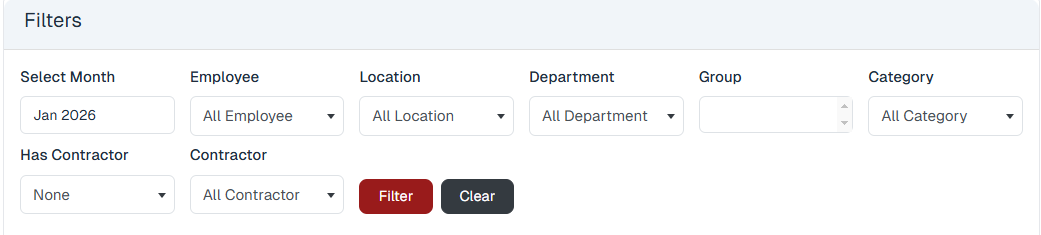
**Salary Report – Filters:**
The **Salary Report** includes advanced filtering options.
Filters available:
* **Month** – Filters records for the selected month.
* **Employee** – Filters records for the selected employee.
* **Location** – Filters records based on the selected location.
* **Department** – Filters records based on the selected department.
* **Group** – Filters records based on the selected group.
* **Category** – Filters records based on the selected employee category.
* **Contractor** – Filters records based on the associated contractor.
#### Action Buttons:
* **Filter** – Applies selected filters
* **Clear** – Clears all applied filters
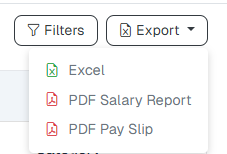
A **Filter button** is also available at the top to apply all filters at once.
### Export Salary Reports:
The **Export** option allows downloading salary data in multiple formats:
* **Excel Salary Report**
* **PDF Salary Report**
* **PDF Payslips**
This helps in payroll sharing, auditing, and record keeping.
#### Salary Template Selection :
In the **Salary Report** and **PF Report**, the system provides a **Salary Template dropdown** at the top of the report.
* Users can switch between different **salary templates** using this dropdown.
* The report data updates automatically based on the selected salary template.
* This helps in viewing payroll data accurately for employees who are assigned to different salary structures.
### Salary Report Columns:
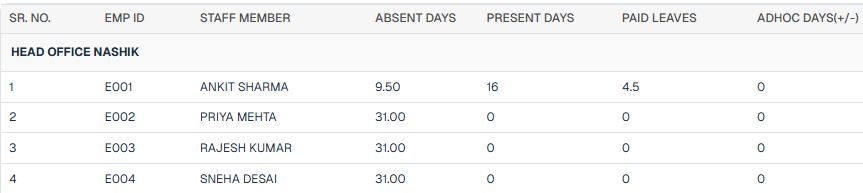
The **Salary Report** provides a detailed summary of employee salary data for a selected payroll period. It helps administrators review, verify, and manage payroll information before and after salary processing.
Once payroll is **generated**, the salary Report Button are displayed in a **payroll table after click on that view button visible**, button opens the **detailed Salary Report** for the employee.
The Salary Report contains detailed payroll components, including:
Below is a **simple explanation of each column** in the salary report:
* **Serial Number** – Sequential number of the record.
* **Employee ID** – Unique ID assigned to the employee.
* **Staff Member Name** – Name of the employee.
* **Absent Days** – Total days the employee was absent in the month.
* **Present Days** – Total days the employee was present.
* **Paid Days** – Days considered for salary calculation.
* **Ad-hoc Days** – Extra or special working days added manually.
* **Weekly Offs** – Total weekly holidays in the month.
* **Holidays** – Official company holidays.
* **Basic Salary** – Fixed base component of the salary.
* **HRA** – House Rent Allowance paid to the employee.
* **Special Allowances** – Additional allowances apart from basic and HRA.
* **Overtime Salary** – Amount paid for overtime work.
* **Overtime Bonus** – Extra bonus given for overtime.
* **Incentives** – Performance or target-based incentives.
* **Total Salary** – Gross salary before deductions.
* **EPF Salary** – Salary amount considered for Provident Fund.
* **ESIC Salary** – Salary amount considered for ESIC.
* **PT Amount** – Professional Tax deducted.
* **TDS Deduction** – Tax Deducted at Source.
* **Standard Deduction (STA)** – Fixed deduction as per payroll rules.
* **Hold Amount** – Salary amount kept on hold.
* **Net Salary** – Final payable salary after all deductions.
* **Other Applicable Salary Components** – Any additional earnings or deductions applied.
### PF Report (Provident Fund Report)
The **PF Report** provides a detailed view of Provident Fund–related salary components for employees for a selected payroll month.\
This report is primarily used for **statutory compliance, audits**
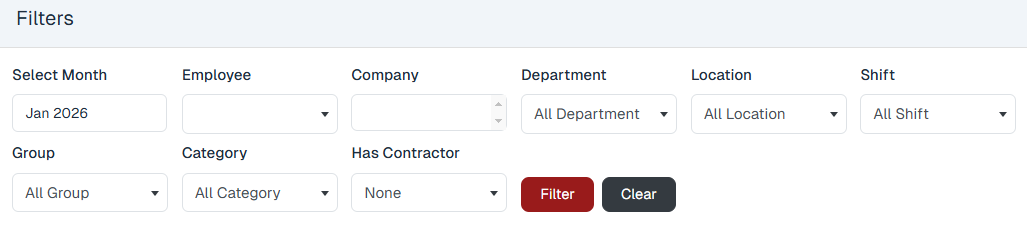
### PF Report Filters:
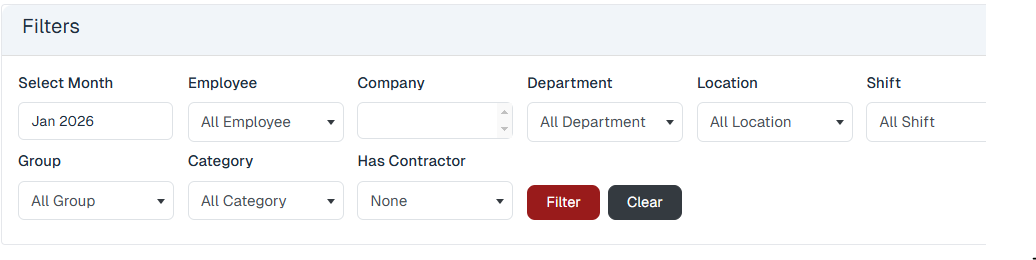
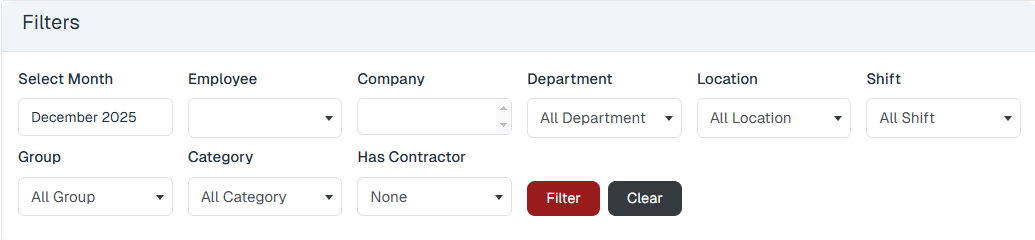
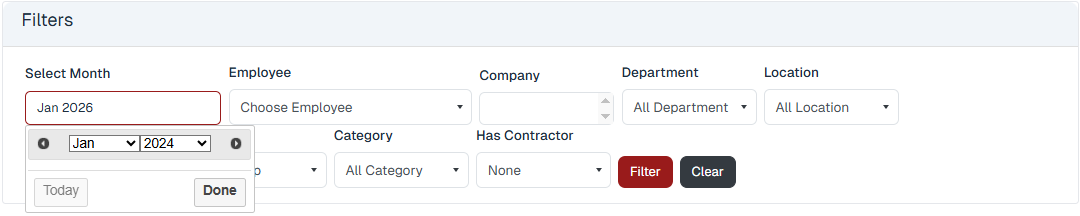
To refine the PF data, multiple filters are available at the top of the report.
#### Available Filters:
**simple explanation of each filter field**:
* **Select Month** – Choose the payroll month for which data needs to be viewed.
* **Employee** – Filter records for a specific employee.
* **Company** – View data belonging to a particular company entity.
* **Department** – Filter employees based on their department.
* **Location** – View records for a specific work location.
* **Shift** – Filter employees by assigned work shift.
* **Group** – Narrow results based on employee group classification.
* **Category** – Filter employees by category (e.g., permanent, temporary, etc.).
* **Has Contractor** – Filter records to show contractor or non-contractor employees.
These filters help in viewing PF data for a specific employee group, department, location, or employment category.
### Filter Actions :
Two action buttons are available:
* **Filter**\
Applies all the selected filter criteria and displays the filtered PF data.
* **Clear**\
Clears all applied filters and resets the report to its default view.
### Export PF Report:
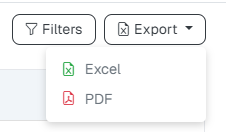
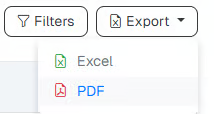
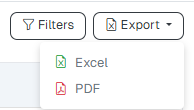
An **Export** button is available at the top of the PF report.
#### Export Options:
* **Excel** – Download the PF report in Excel format
* **PDF** – Download the PF report in PDF format
Users can select the required format based on reporting or compliance needs.
### PF Report Columns :
The PF Report displays the following columns for each employee:
* **Staff Member** – Name of the employee.
* **PF Account Number** – Employee’s Provident Fund account number.
* **UAN Number** – Universal Account Number linked to the employee’s PF.
* **Gross Salary** – Total salary before any deductions.
* **Basic and DA Salary** – Basic pay plus Dearness Allowance used for PF calculation.
* **F.P. (Financial Performance)** – PF amount allocated toward the employee’s pension/financial performance component.
* **Employer PF Contribution** – Provident Fund amount contributed by the employer.
* **Total PF (12%)** – Total Provident Fund contribution calculated at 12% of eligible salary.
Each column shows the **exact PF-related amount calculated for the employee** for the selected payroll month.
### ESIC Report :
The **ESIC Report** provides a detailed view of Employee State Insurance (ESI)–related salary and contribution data for eligible employees. This report helps organizations ensure statutory compliance and simplifies reporting for audits and government filings.
#### Filters Available in ESIC Report:
The ESIC report provides multiple filters to narrow down the data:
* **Select Month** – Choose the payroll month for which data needs to be viewed.
* **Employee** – Filter records for a specific employee.
* **Company** – View data for a selected company.
* **Department** – Filter employees based on their department.
* **Location** – View records for employees from a specific work location.
* **Shift** – Filter data according to assigned work shifts.
* **Group** – Narrow results based on employee group.
* **Category** – Filter employees by category type.
* **Has Contractor** – Show only contractor employees or exclude them.
Two action buttons are available:
* **Filter** – Applies all the selected filters and displays the filtered data.
* **Clear** – Clears all selected filters and resets the report view.
These filters help administrators quickly locate ESIC data for specific employees, departments, locations, or compliance needs.
#### ESIC Report Columns :
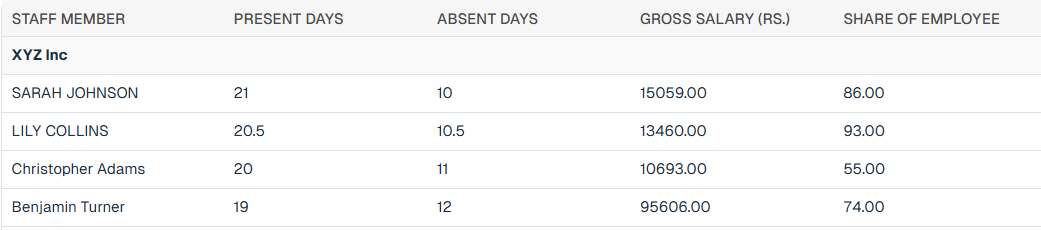
The ESIC report displays the following information for each employee:
* **Staff Member** – Name of the employee.
* **Present Days** – Total number of days the employee was present in the selected period.
* **Absent Days** – Total number of days the employee was absent.
* **Gross Salary** – Total earnings before any deductions.
* **Employee ESIC Share** – ESIC amount deducted from the employee’s salary.
These columns provide a clear breakdown of attendance, salary, and ESIC contribution details for each eligible employee.
#### Export ESIC Report:
At the top of the ESIC report, an **Export** button is available.
Export options include:
* **Excel Format**
* **PDF Format**
This allows the ESIC report to be downloaded for statutory submission, internal audits, record-keeping, or sharing with consultants.
### Professional Tax (PT) Report:
The **Professional Tax (PT) Report** provides a detailed summary of professional tax deductions applied to employees based on applicable state regulations. This report helps organizations ensure statutory compliance and maintain accurate payroll records.
#### Filters Available in PT Report
The PT report provides multiple filters to refine the data:
* **Select Month** – Choose the month for which the data needs to be viewed.
* **Employee** – Filter records for a specific employee.
* **Company** – View data related to a particular company.
* **Department** – Filter employees by their department.
* **Location** – View records based on work location.
* **Shift** – Filter data according to assigned shift.
* **Group** – Narrow results by employee group.
* **Category** – Filter employees by category.
* **Has Contractor** – Show records based on contractor employees.
Two action buttons are available:
* **Filter** – Applies all selected filters and displays the filtered results.
* **Clear** – Clears all applied filters and resets the report view.
These filters help in quickly identifying professional tax deductions for specific employees or organizational units.
#### PT Report Columns:
The Professional Tax report displays the following columns:
* **Staff Member** – Name of the employee.
* **Gender** – Gender of the employee.
* **Gross Salary** – Total salary before any deductions.
* **PT Value** – Professional Tax amount applicable to the employee.
These columns provide a clear view of the employee’s salary details and the professional tax amount deducted.
#### Export PT Report:
At the top of the PT report, an **Export** button is available.
Export options include :
* **Excel Format**
* **PDF Format**
This allows the report to be downloaded for statutory filing, internal audits, payroll verification, and record-keeping.
### Overtime (OT) Report :
The **Overtime (OT) Report** provides a detailed view of overtime worked by employees and the corresponding compensation calculated during payroll processing.This report helps organizations track additional working hours, ensure fair payment, and maintain payroll accuracy.
#### Filters Available in OT Report :
The OT report allows filtering of overtime data using the following options:
* **Start Date** – Selects the beginning date for the data range.
* **End Date** – Selects the ending date for the data range.
* **Employee** – Filters records for a specific employee.
* **Company** – Filters data by company.
* **Department** – Filters records by department.
* **Location** – Filters data by work location.
* **Shift** – Filters records based on assigned shift.
* **Group** – Filters data by employee group.
* **Category** – Filters records by employee category.
* **Has Contractor** – Filters employees who are marked as contractors or non-contractors.
Two action buttons are provided:
* **Filter** – Applies all selected filters and displays the filtered overtime data.
* **Clear** – Clears all applied filters and resets the report view.
These filters help in reviewing overtime records for specific employees, departments, shifts, or time periods.
#### OT Report Columns:
The Overtime report displays the following columns
* **Staff Member** – Name of the employee who worked overtime
* **Overtime Hours** – Total number of overtime hours worked by the employee
* **Per Hour Salary (Rs.)** – Hourly overtime rate applicable to the employee
* **Extra Salary (Rs.)** – Total overtime amount payable, calculated based on overtime hours and per-hour salary
#### Export OT Report :
At the top of the OT report, an **Export** button is available.
Export options include :
* **Excel Format**
* **PDF Format**
This allows organizations to download overtime data for payroll verification, audits, and record-keeping.
### Bank Report :
The **Bank Report** in the Payroll section of **Pletox** is used to generate **salary payment details required for bank disbursement**. This report helps organizations prepare bank-wise salary transfer data for employees and supports smooth salary processing through bank uploads, cheques, or manual transfers.
It is primarily used by Payroll and Finance teams to:
* Transfer salaries to employee bank accounts
* Generate bank-compatible salary files
* Maintain salary payment records for auditing and reconciliation
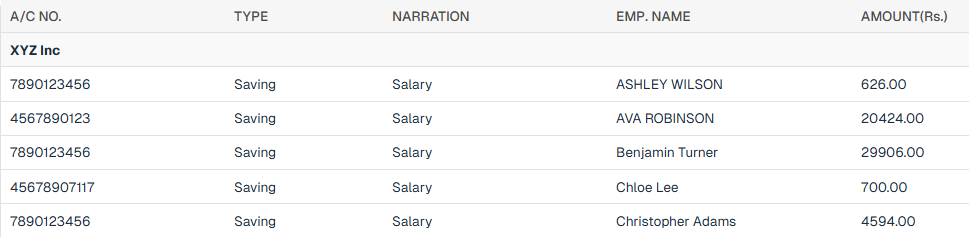
### Bank Report Columns :
The Bank Report displays the following columns:
* **Account Number** – Bank account number to which the transaction is related.
* **Type (Savings / Other)** – Specifies the type of bank account.
* **Narration** – Description or purpose of the transaction.
* **Employee Name** – Name of the employee associated with the transaction.
* **Amount** – Transaction amount to be credited or debited.
These columns provide all required information for processing employee salary payments through banks.
### Bank Report Filters:
The Bank Report includes multiple filters to refine salary payment data.
#### Available Filters:
* **Select Month** – Selects the month for which records need to be viewed.
* **Employee** – Filters data for a specific employee.
* **Company** – Filters records based on the selected company.
* **Department** – Filters employees by department.
* **Location** – Filters records by work location.
* **Shift** – Filters data according to assigned shift.
* **Group** – Filters records based on employee group.
* **Category** – Filters employees by category.
* **Has Contractor** – Filters records to show contractor or non-contractor employees.
#### Action Buttons:
* **Filter** – Applies all selected filters and displays the filtered data
* **Clear** – Clears all applied filters and resets the report
At the top of the report, a **Filter button** is also available to apply filters easily.
### Export Options in Bank Report:
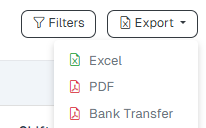
At the top of the Bank Report, an **Export** button is available with the following options:
* **Excel Format** – Download the bank report in Excel
* **PDF Format** – Download the bank report in PDF
* **Bank Transfer** – Generate a bank-specific salary transfer file
These options help organizations share salary data with banks and maintain payroll records.
### Bank Transfer Export :
When **Bank Transfer Export** is selected, Export table view becomes visible.
**Filters Available in Bank Transfer Export:**
* **Select Month** – Selects the month for which records are to be viewed.
* **Employee** – Filters records for a specific employee.
* **Company** – Filters data based on the selected company.
* **Location** – Filters records by work location.
* **Department** – Filters employees by department.
* **Shift** – Filters records according to assigned shift.
* **Has Contractor** – Filters records to show contractor or non-contractor employees.
* **Bank Name** – Filters records by the selected bank.
* **Cheque Number** – Filters results using the cheque number.
* **Cheque Date** – Filters records based on the cheque issue date.
* **File Type** – Filters records by file type (Excel, PDF, etc.)
Here is a **clear one-line explanation for each filter field**:\
\

* **File Type:**\
After clicking on the **File Type** dropdown, two options are available:
* **PDF**
* **CSV**
**Action Buttons:**
* **Download** – Downloads the bank transfer file
* **Clear** – Clears all applied filters
This view is specifically designed for generating **bank-compatible salary files**.
### Resigned Employee Filter:
A **Resigned toggle** is available beside the file Type of the Bank Report.
* When the toggle is **enabled**, the report displays **only resigned employees**
* When disabled, the report shows active employees by default
This helps payroll teams separate salary processing for resigned employees.
### Advance Report :
The **Advance Report** in the Payroll section of is used to track **salary advances given to employees and their recovery through payroll**. This report provides complete visibility of advance balances, additions, deductions, and closing balances for a selected payroll period.
It helps Payroll and HR teams:
* Monitor outstanding employee advances
* Track advance recovery during payroll
* Maintain accurate financial and payroll records
* Support audits and internal reporting
### Advance Report – Filters:
The Advance Report includes multiple filters to refine advance-related data.
#### Available Filters:
* **Select Month** – Choose the month for which records need to be viewed.
* **Employee** – Filter data for a specific employee.
* **Company** – View records for a selected company.
* **Department** – Filter employees by their department.
* **Location** – Filter records based on work location.
* **Shift** – Filter data according to assigned shift.
* **Group** – Narrow results based on employee group.
* **Category** – Filter employees by category.
* **Has Contractor** – Show or hide contractor employees in the records.
#### Action Buttons:
* **Filter** – Applies all selected filters and displays the filtered data
* **Clear** – Clears all applied filters and resets the report
At the top of the report, an **Export** button is available.
### Export Advance Report:
The Advance Report can be exported in the following formats:
* **Excel Format**
* **PDF Format**
This allows easy sharing, auditing, and record-keeping.
### Advance Report Columns :
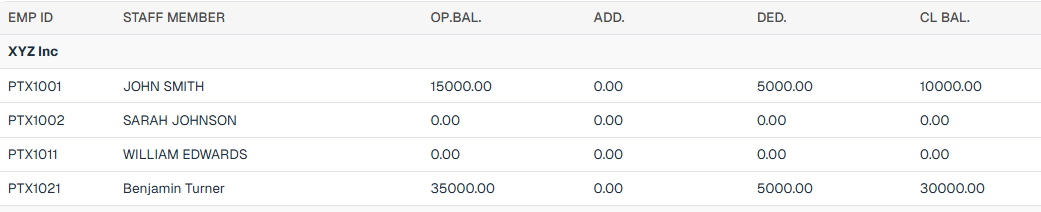
The Advance Report displays the following columns:
1\. Employee ID
A unique identification number assigned to the employee in the system.
2\. Staff Member
The full name of the employee
3\. OP Balance (Opening Balance)
The outstanding advance amount carried forward from the **previous payroll period**.
4\. Addition
Any **new advance amount** added or given to the employee during the selected payroll month.
5\. Deduction
The **advance amount recovered** from the employee’s salary during the payroll run.
6\. CL Balance (Closing Balance)
The remaining advance amount **after additions and deductions** for the selected month.
### Payroll Summary Report:
The **Payroll Summary Report** in Pleto provides a **consolidated view of payroll history** across multiple months. It helps organizations analyze total payroll costs, working hours, and salary components such as **Basic, Gross, or CTC** for selected employees and locations.
This report is useful for **management review, financial analysis, and payroll comparison** across periods.
1. Click on **Payroll Summary**
2. The **Payroll History** screen will open
### Payroll Summary – Filters:
The Payroll Summary includes advanced filters to refine payroll history data.
#### Available Filters:
* **Start Month** – Select the beginning month of the summary period.
* **End Month** – Select the ending month of the summary period.
* **Location** – Filter payroll data by location.
* **Salary Template** – Select a salary template from the dropdown
* **Summary Type** – Choose the payroll component to summarize:\
eg.
* Basic Payments
* Gross Payments
* CTC
#### Action Buttons:
* **Filter** – Applies all selected filters and displays the payroll summary
* **Clear** – Clears all selected filters and resets the report
At the top of the screen, **Filter** and **Export** buttons are also available.
### Export Payroll Summary:
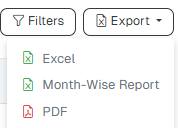
Clicking on the **Export** button provides the following options:
* **Excel** – Download the payroll summary in Excel format
* **Monthly Report** – Download month-wise payroll summary
* **PDF** – Download the payroll summary in PDF format
These options help in reporting, auditing, and management presentations.
### Payroll Summary Columns:
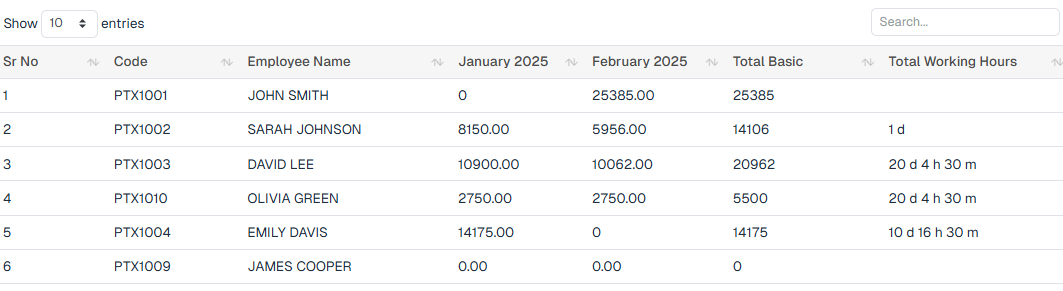
The Payroll Summary (Payroll History) displays the following columns:
* **Serial Number** – Sequential number of records
* **Code** – Employee code or unique identifier
* **Employee Name** – Name of the employee
* **Start Month – End Month** – Payroll period selected through filters
* **Total Summary** – Total amount based on the selected summary type (Basic / Gross / CTC)
* **Total Working Hours** – Total working hours for the selected period
### Increment Report :
The **Increment Report** in Pletox is used to track **salary increments applied to employees**. Whenever an increment is processed for an employee, the corresponding entry is recorded and can be viewed in this report.
This report helps HR and Payroll teams:
* Monitor employee salary revisions
* Compare old and revised CTC values
* Track the effective date and duration of increments
* Maintain a history of compensation changes
### Increment Report Columns:
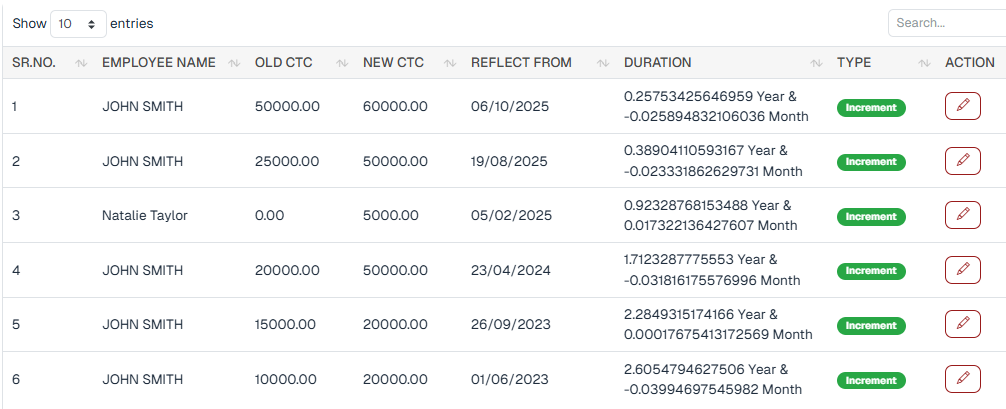
The Increment Report displays the following columns:
* **Serial Number**
* **Employee Name** – Name of the employee whose salary was incremented
* **Old CTC** – Employee’s CTC before the increment
* **New CTC** – Employee’s CTC after the increment
* **Reflect From** – The effective date from which the increment is applicable
* **Duration** – The duration for which the increment amount is applicable\
\
The **Edit** button is used to modify existing increment details.
#### Increment Report – Filters:
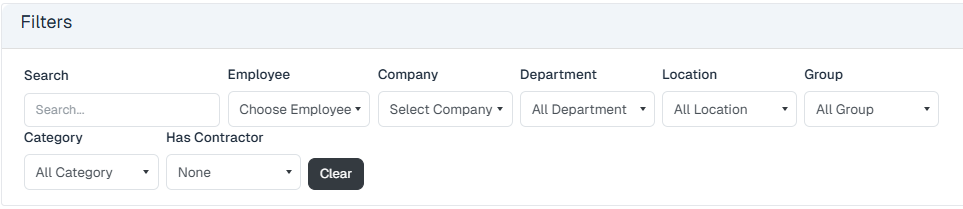
The Increment Report includes filters to refine increment records.
**Available Filters :**
* **Employee** allows filtering records for a specific employee.
* **Company** displays records associated with a selected company entity.
* **Department** filters data based on the assigned department.
* **Location** narrows results according to the employee’s work location.
* **Group** filters records based on assigned employee groups.
* **Category** displays records based on employee classification or category.
* **Has Contractor** differentiates between contractor-associated and non-contractor records.
The available filters help narrow down records based on organizational and employment attributes
#### Action Buttons:
* **Filter** – Applies selected filters and displays the data
* **Clear** – Clears all applied filters and resets the report